
Dental practice · iTero
How to send an iTero scan to another lab
If the order is still on the scanner, choose the lab in the Rx. If you already sent it, get the files back from MyiTero.
The guide
Follow your order until the lab has it.
On the scanner · Order not sent
Choose the lab in the Rx.
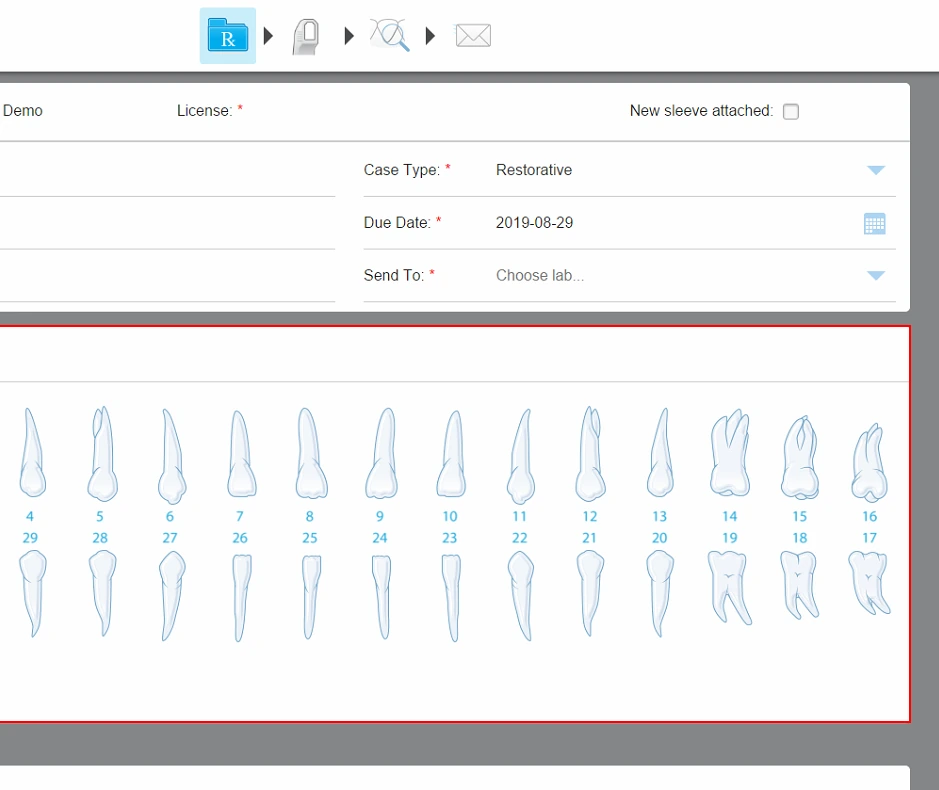
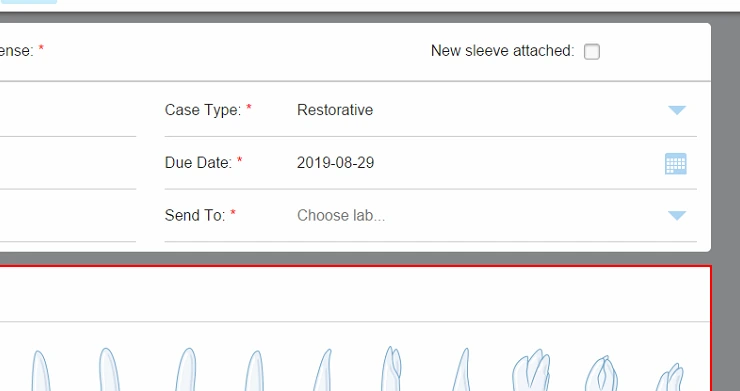
Open the restorative Rx. In Send To, choose the lab that will make the crown, and check its name before you sign and send.
If the lab isn't in the list
Ask your practice's MyiTero administrator to add the lab, then go back to the Rx. The screenshot is from the iTero Element 5D manual, figure 61.
In MyiTero · Order already sent
Get the scan back.
Before you order the crown from another lab, ask the first lab whether it has already started.
Download the order's files
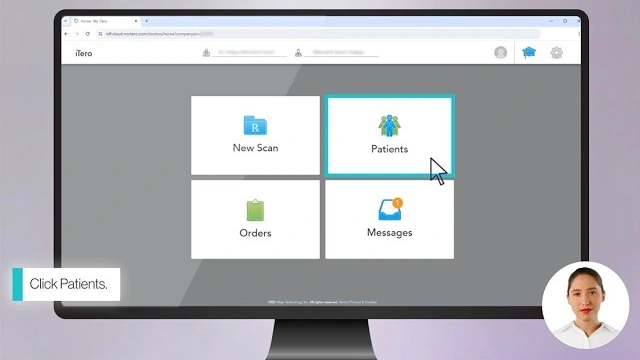
In MyiTero, find the patient and open the right order. Click Export, choose the design system the new lab asks for, and save the files. If the lab asks for an open model, check whether it needs “Implants and Other Exports - Open Model”.
At the new lab
Confirm the new lab has the scan.
If you exported the scan, send the files through the channel the technician asks for. If they want separate STL files, take them out of the download first.
Check receipt with the technician
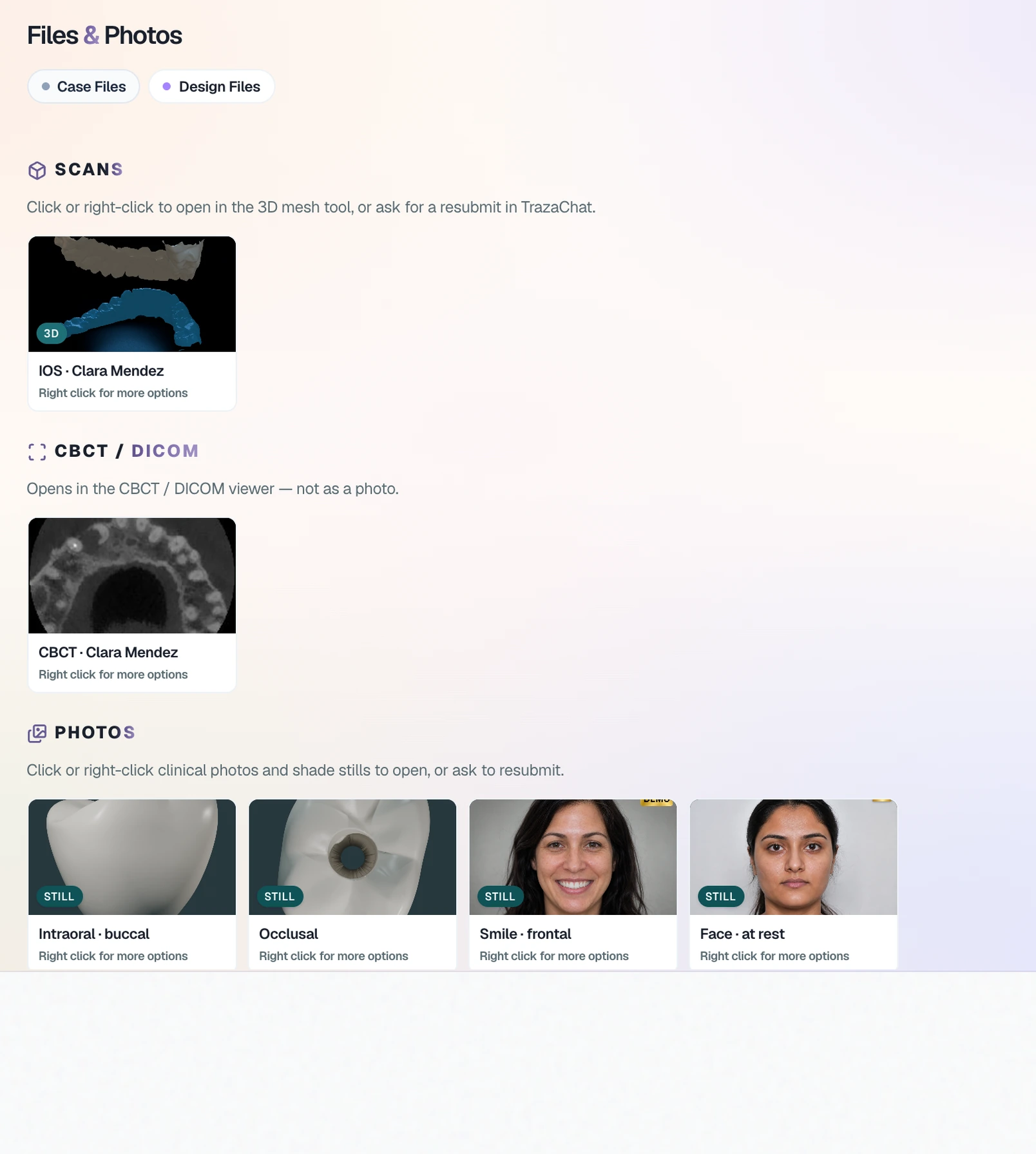
In this TrazaLab example, the technician opens Clara Mendez's case and finds her scan, IOS · Clara Mendez, in Files & Photos.
Fill in the prescription for your new lab.
Add the work, the tooth and the shade. Send the prescription with the files you exported.
Fill in my lab prescription