
Case assignment
Each case, with its technician.
The workbench distributes the cases in your laboratory. You assign with a right-click, each technician sees their own, and you set what each one can do.
For laboratories with a team of technicians
Workbench
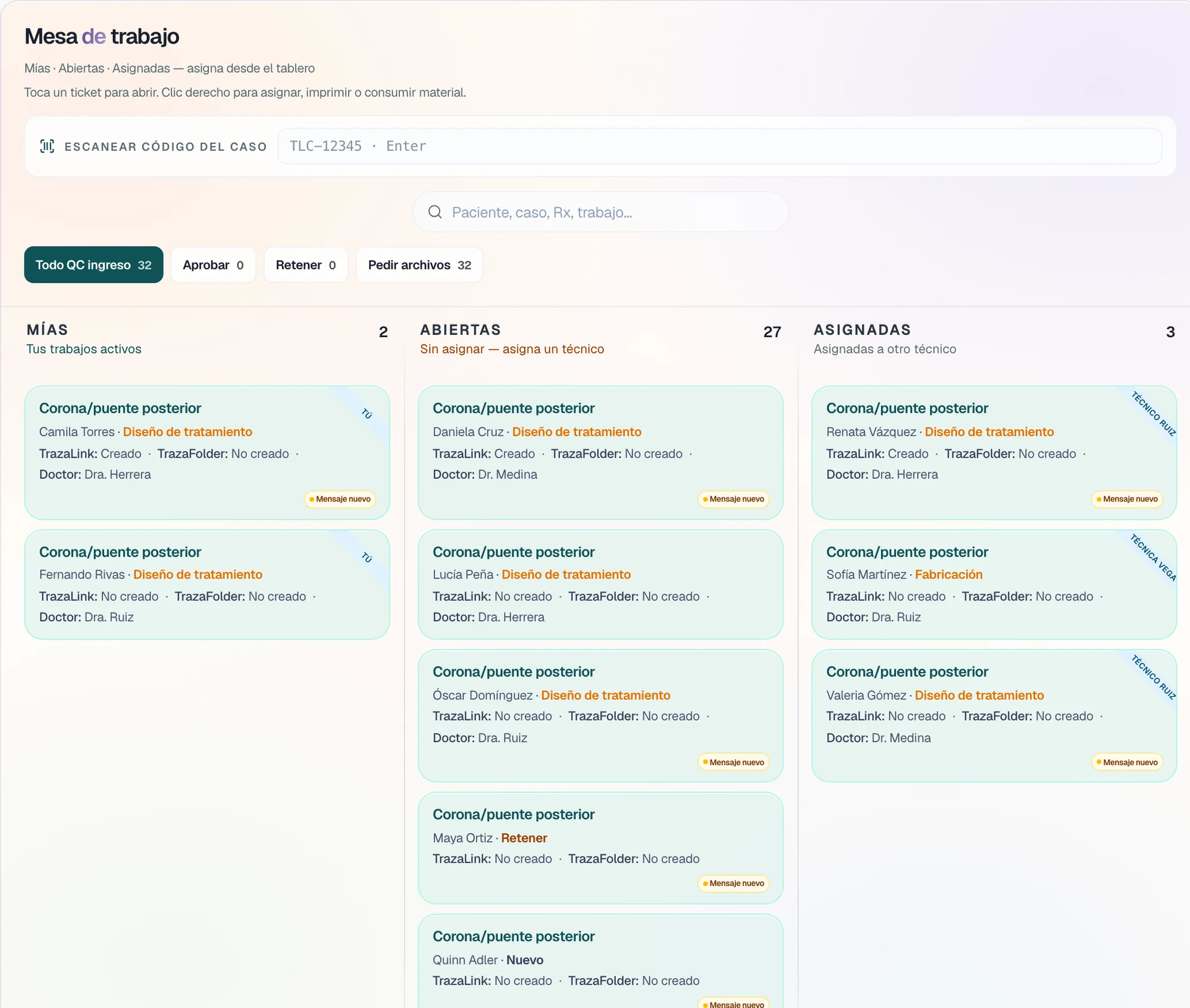
Three lanes, one bench.
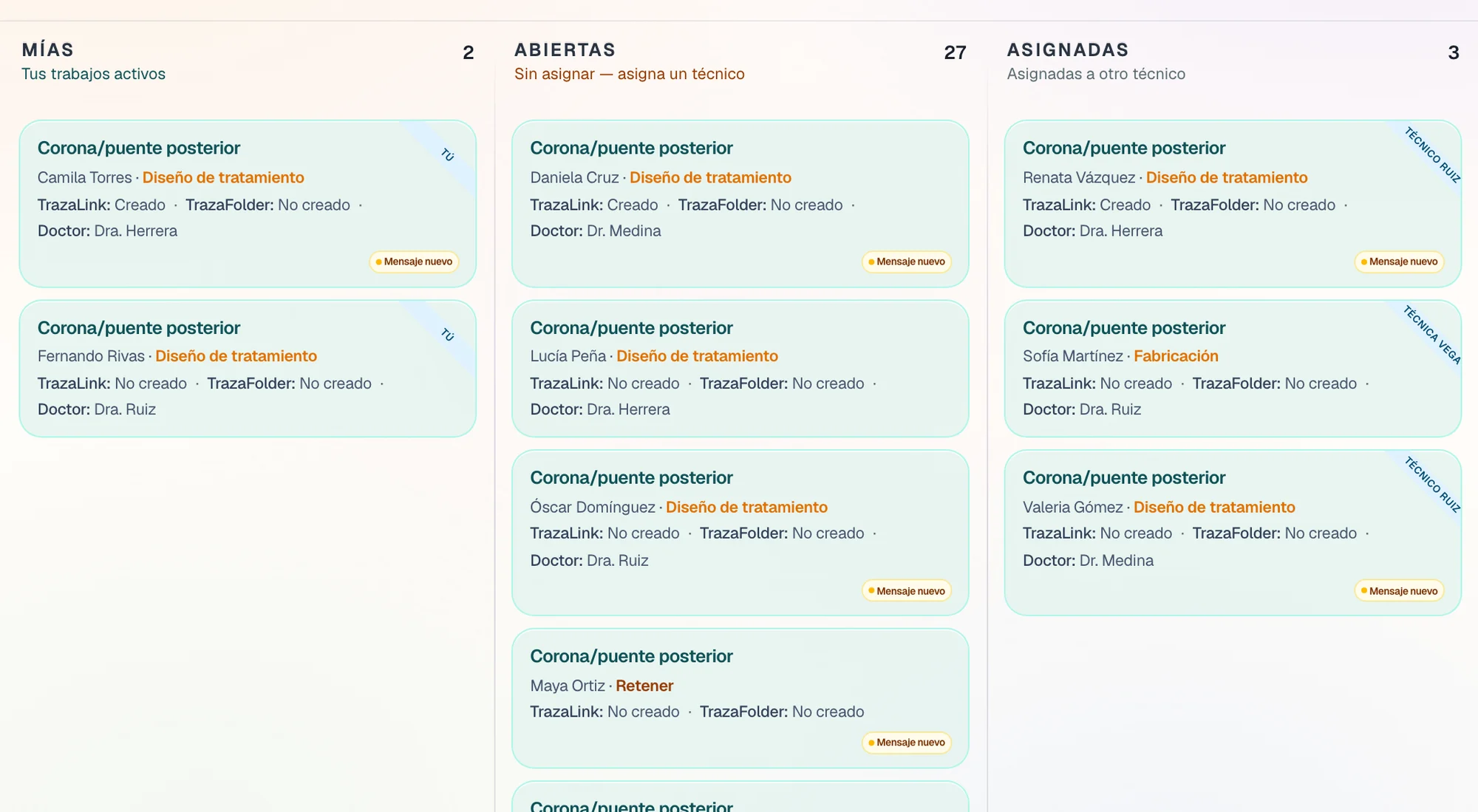
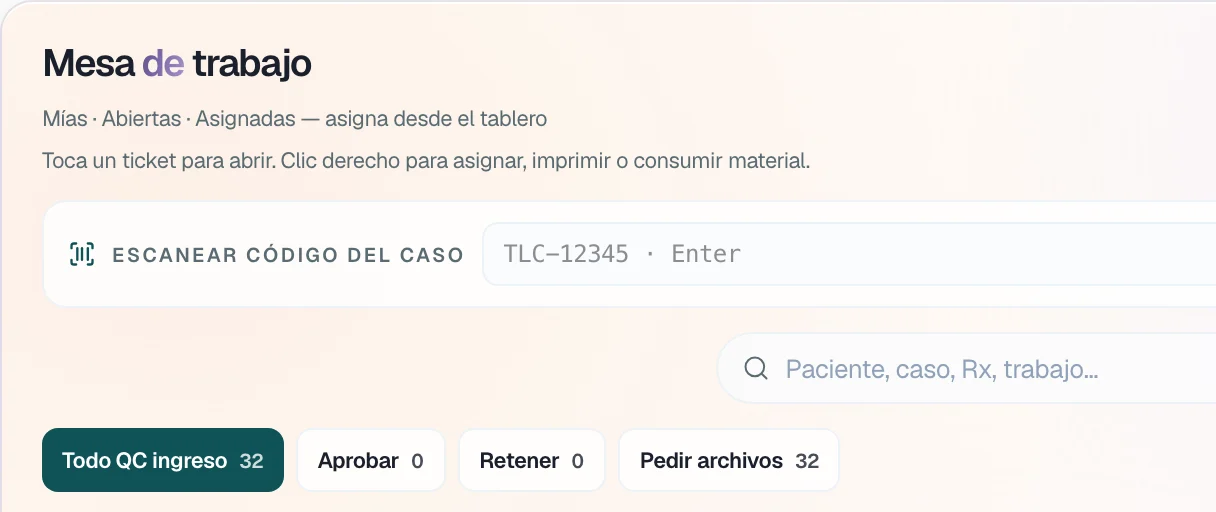
The workbench distributes the laboratory's cases into three lanes, with the technician's name on each ticket.
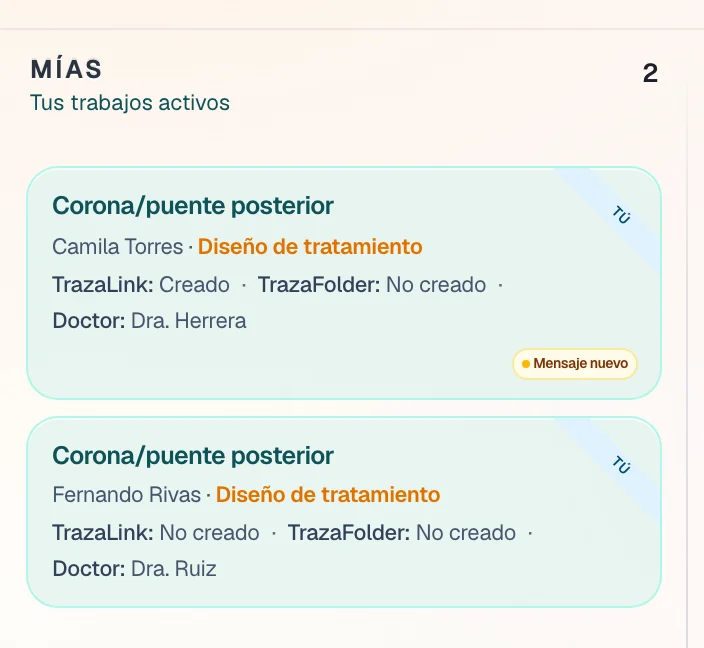
- Mine.
The cases assigned to you.
- Open.
No technician: they wait for someone to assign them.
- Assigned.
With another technician, with their name on the ticket.
Right-click
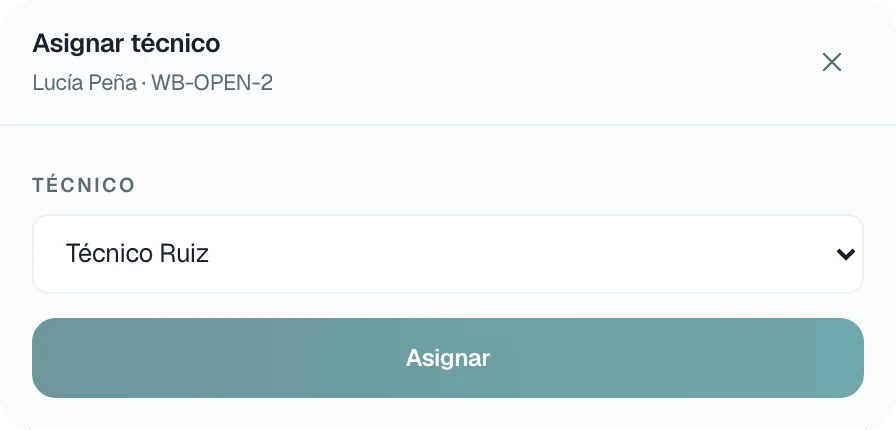
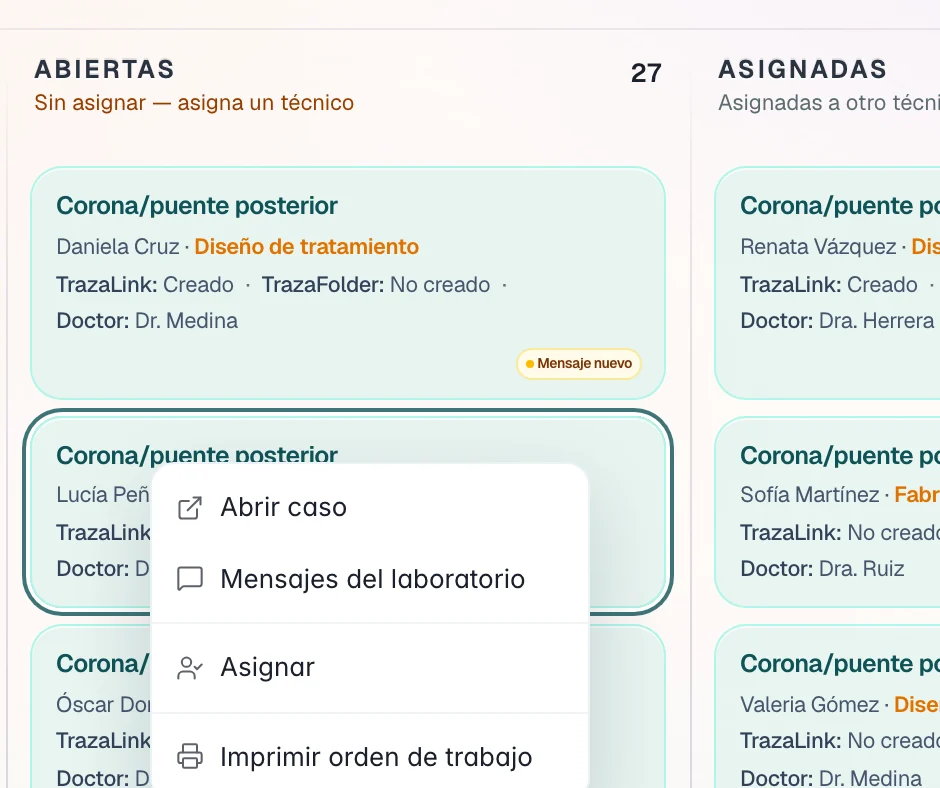
Assign with a right-click.
On each ticket, the right-click opens the case, its messages, the assignment, and the work order.
- Assign.
You choose the technician and the case moves to their lane.
- On other screens too.
The same Assign is on the Panel, Cases, In fabrication, and the Calendar.
Case code
Scan and find the case.
Above the bench are the case-code scanner, the search by patient, case, or Rx, and the filters.
- Bench filters.
All incoming QC, Approve, Hold, and Request files.
The technician
Each technician sees their own.
A technician without the View all orders permission sees only the cases you assign them and the clinics of those cases. They work in their Mine lane and can release a case of their own. Assigning to others and removing an assignment stays with the administrator.
Your team
Invite your team.
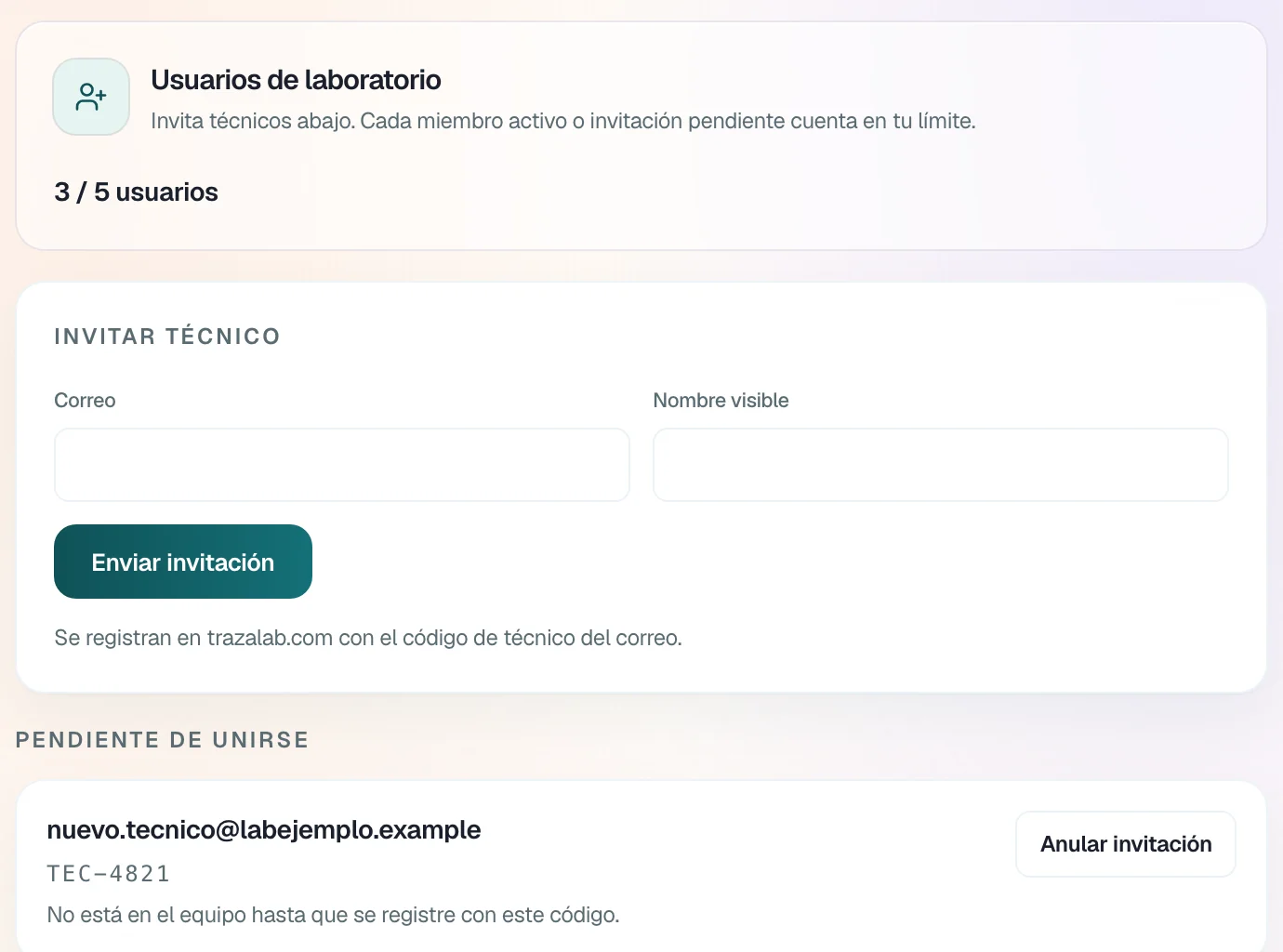
In Settings → Team you invite technicians with their email and their name. They register with the technician code that reaches them.
- Plan users.
Each active member or pending invitation counts toward your limit.
- Pending invitations.
Until they register, you can cancel the invitation.
Permissions
Permissions per technician.
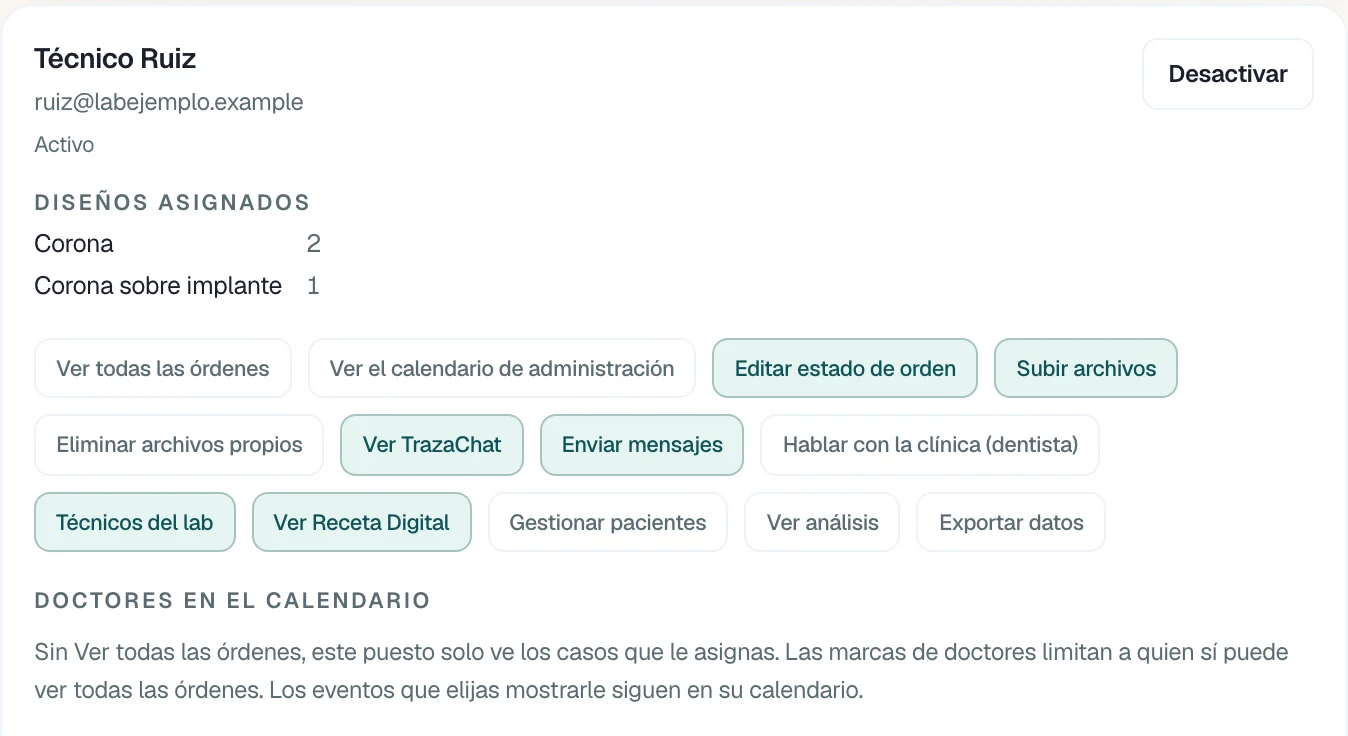
Each technician has their own: view all orders, edit the status, upload files, TrazaChat, the Digital Rx, patients, analysis, and export.
- Assigned designs.
Their record shows how many cases they have, by work type.
One case, one technician
No one is left without knowing what is theirs.
The bench shows who has each case and what is still unassigned.
Each open case waits in Open until you assign it.
They assign and remove assignments; the technician releases their own.
Without View all orders, only the assigned cases.
Two roles
Administrator and technician.
What each role does on the workbench.
Administrator
Distributes and controls.Technician
Works their own.Mine, Open, and Assigned.
Their Mine lane.
Assigns and removes assignments.
Releases a case of their own.
The full book.
Their cases and the clinics of those cases.
Invites, deactivates, and reactivates.
—
Sets them technician by technician.
Works with their own.
Questions
Questions from the laboratory.
The laboratory administrator. A technician can release a case assigned to them.
Right-clickWithout the View all orders permission, only the cases you assign them and the clinics of those cases.
The technicianOn the workbench, with a right-click on the ticket. Also from the Panel, Cases, In fabrication, and the Calendar.
Right-clickIn Settings → Team, with their email and their name. They register at trazalab.com with the technician code from the email.
Your teamYes. On their team record you have Deactivate, and Reactivate when they return.
Your teamNext step
Assign your first case.
Invite a technician and assign them a case from the workbench.