
Laboratory calendar
Close the day once.
You mark the days you do not work. Your clinics see them closed on their calendar and do not put deadlines on them.
For labs that work with several clinics
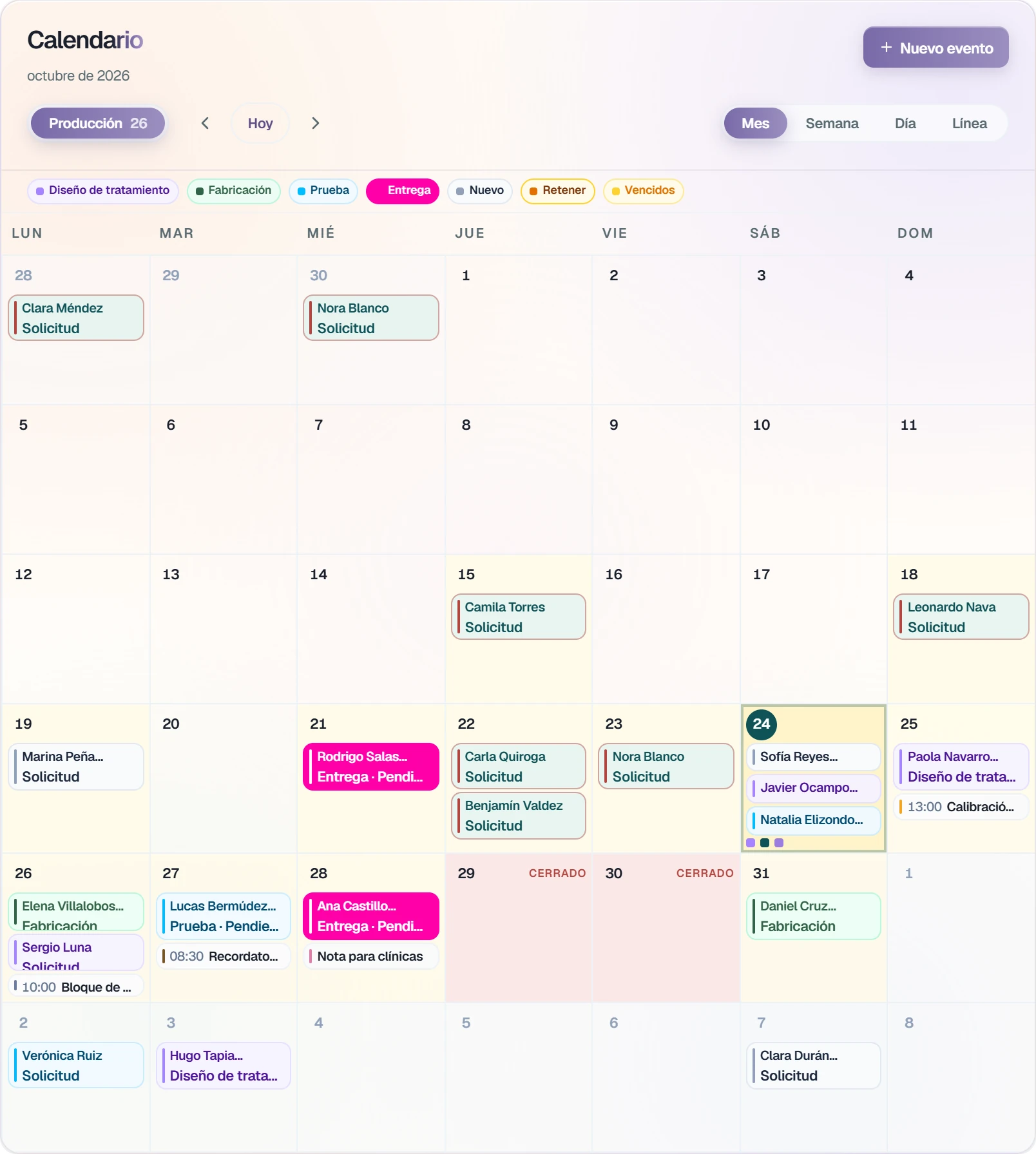
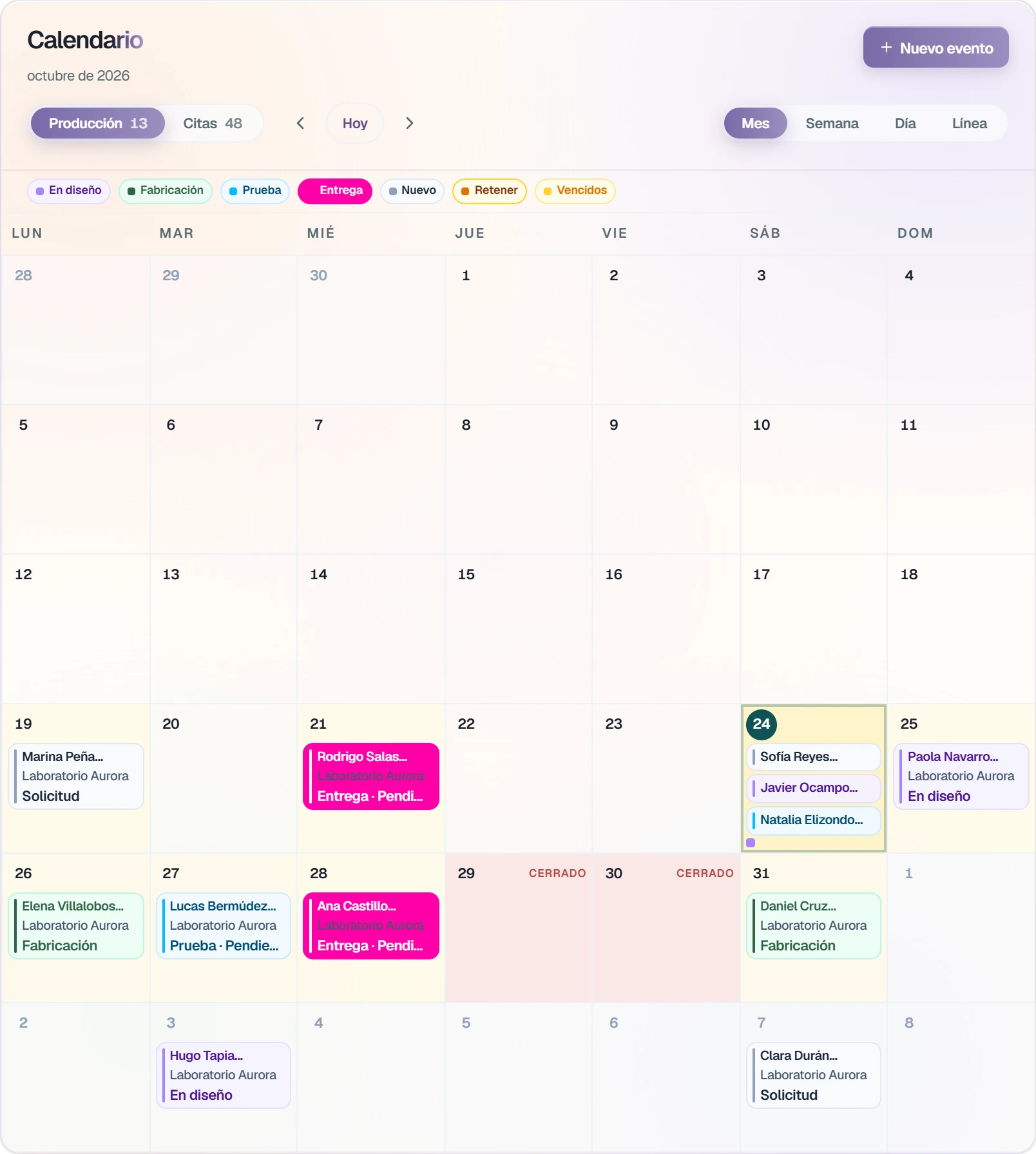
Closed days
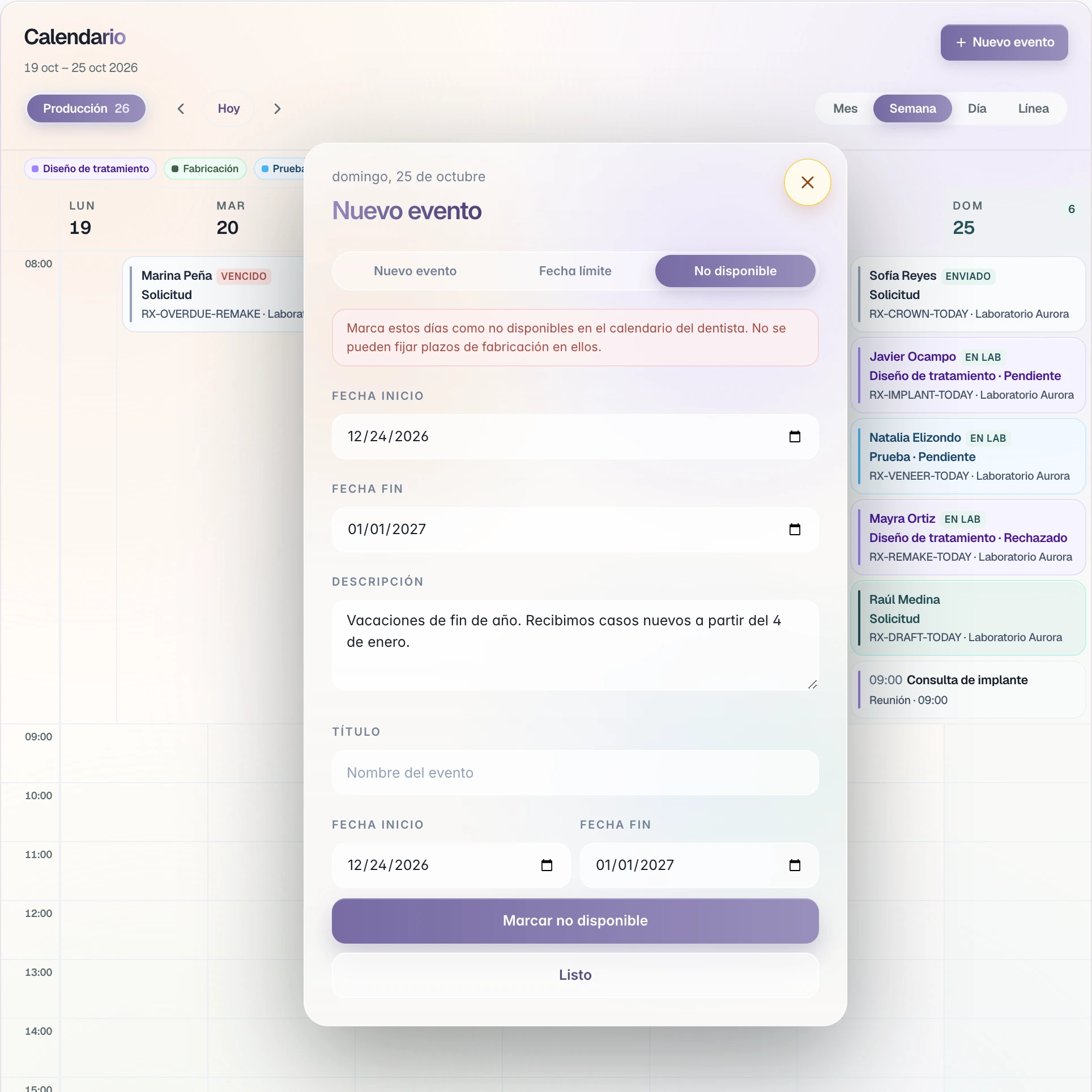
Mark the day closed.
One day or a range, with its note. Maintenance, vacation, or a holiday.
- Choose the dates.
Start date and end date.
- Write the note.
The clinic reads it when they try that day.
- Mark it unavailable.
It stays closed on your calendar and on your clinics' calendars.
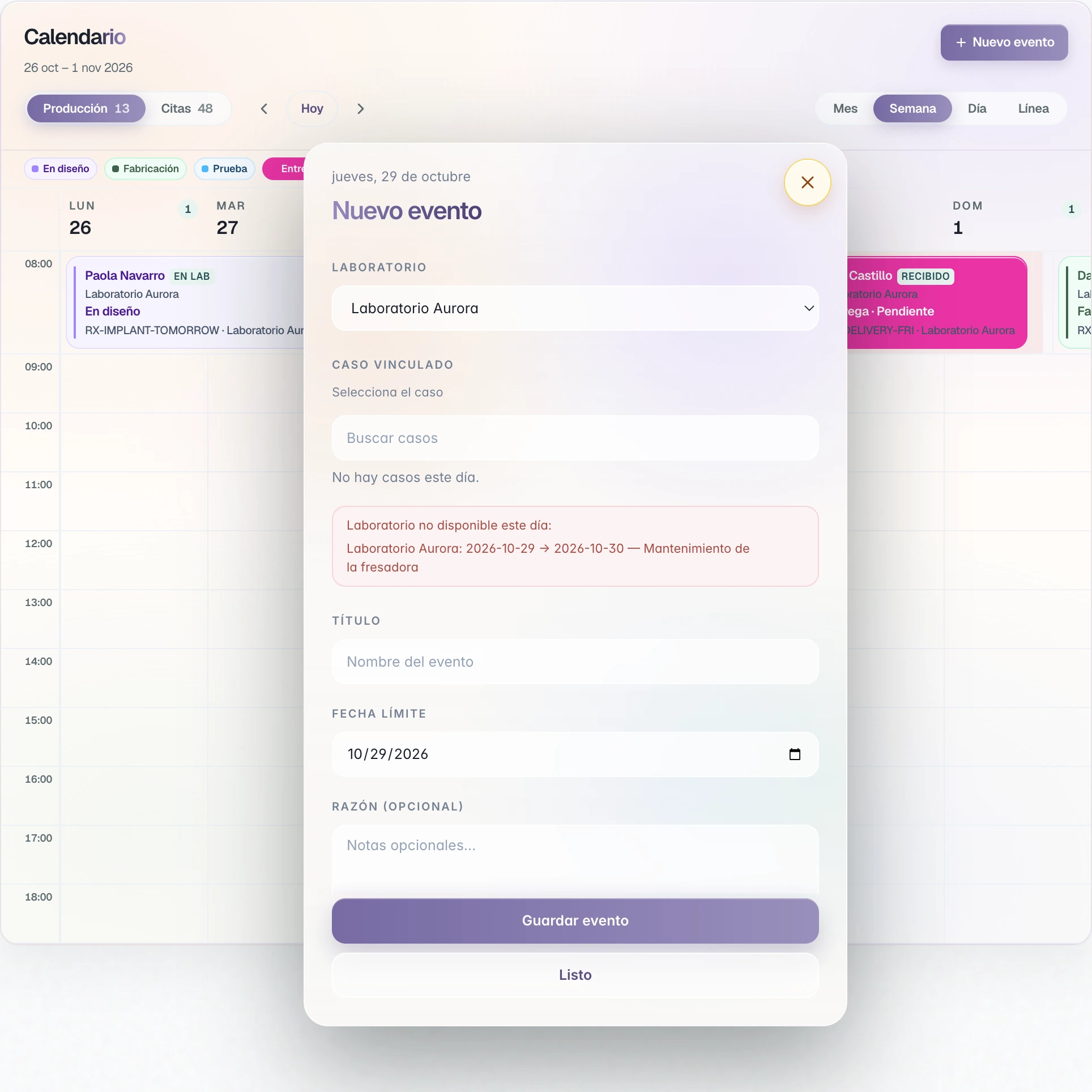
Your clinics
The clinic does not request it.
The day appears closed on their calendar. The deadline cannot be set there.
- They see it closed.
CLOSED, in their month view.
- They read the reason.
Laboratory unavailable this day, with your dates and your note.
- They choose another day.
That date is not available for this laboratory.
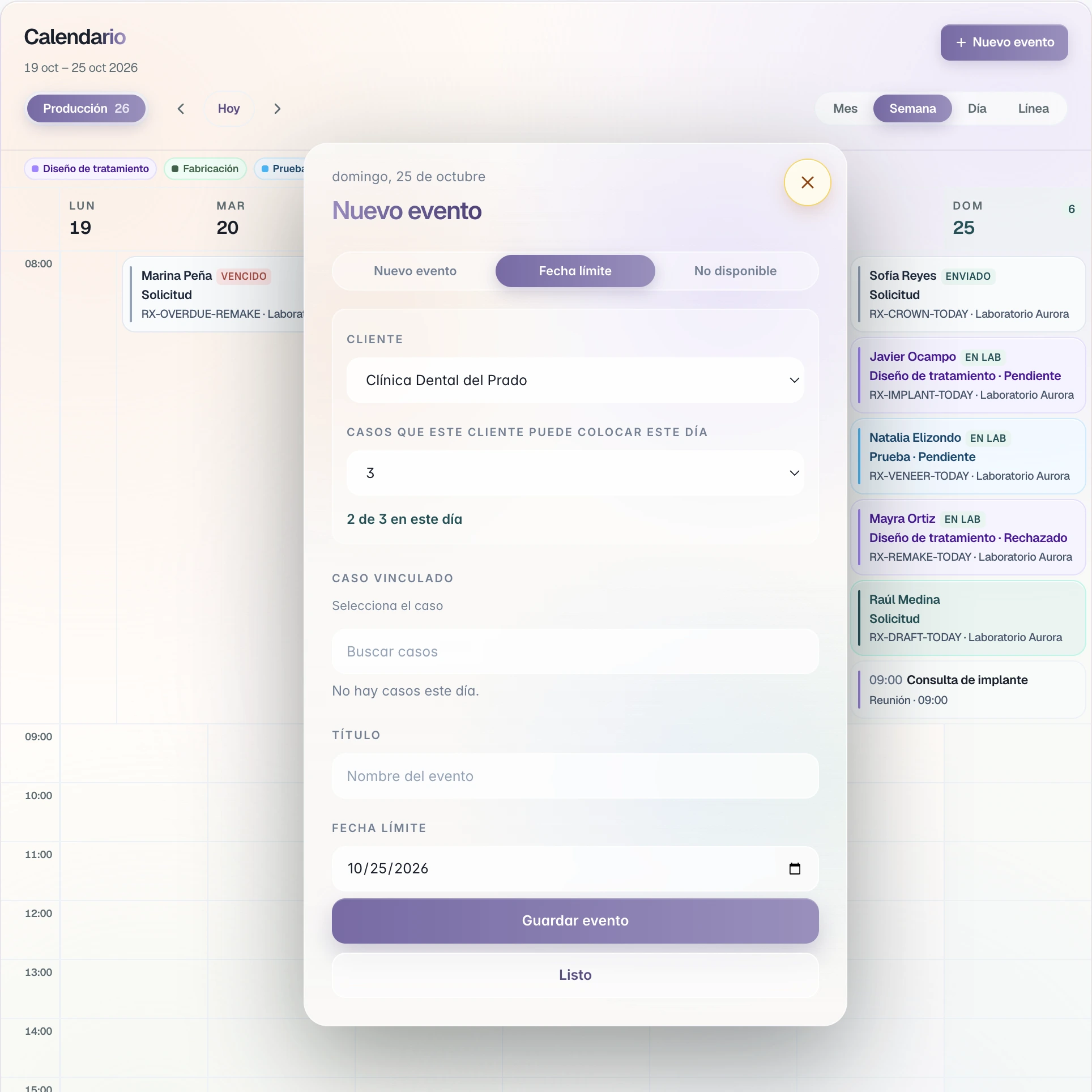
Capacity per client
One capacity per clinic.
You decide how many cases each clinic can place on a day.
- Choose the client.
Each clinic has its own capacity.
- Set the number.
Cases this client can place this day.
- See how many are in.
2 of 3 on this day. When full, the day closes for that client.
Deadlines
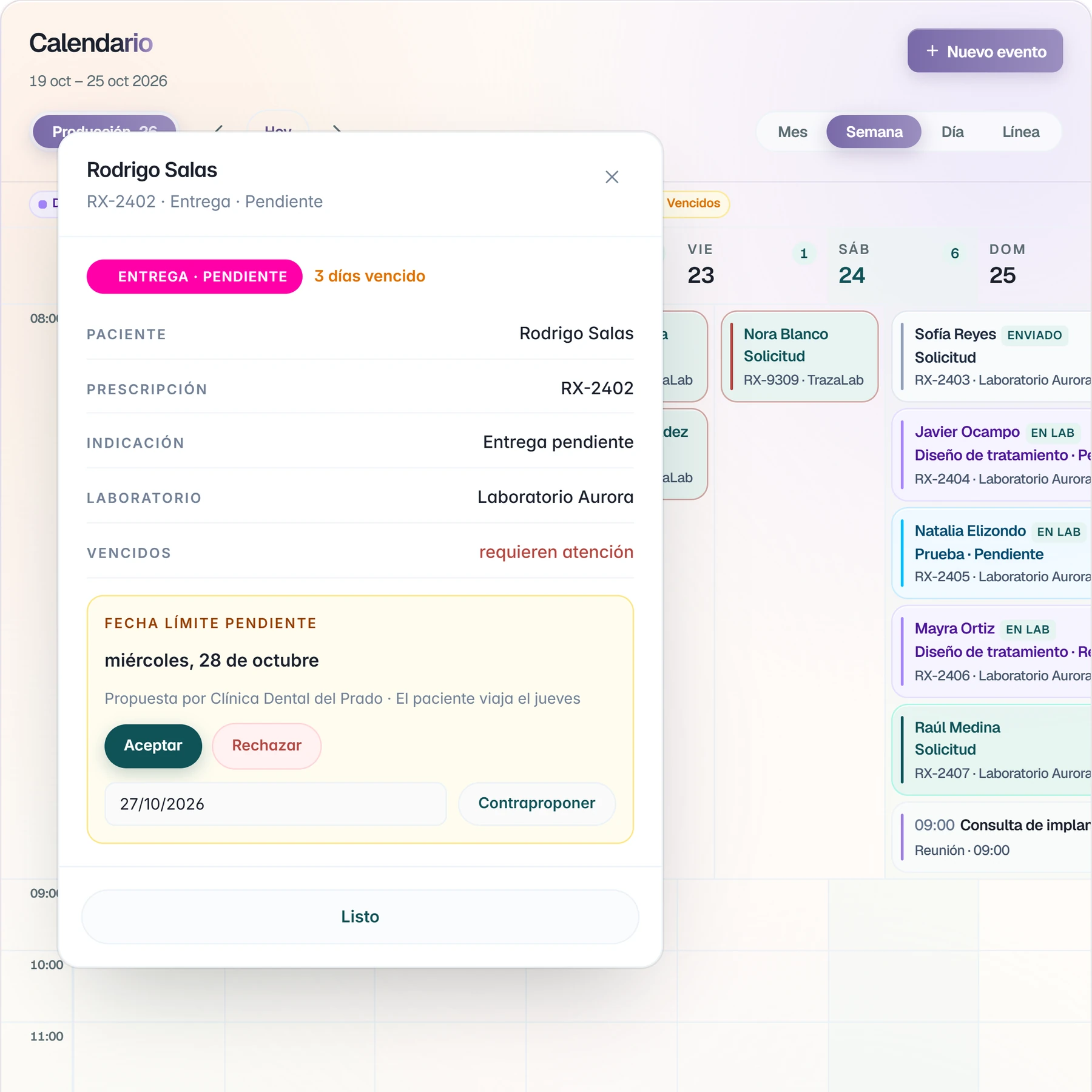
Dates you agree on.
If another delivery date is proposed, it stays pending on the case record.
- Accept.
The new date stays on the case.
- Decline.
The case keeps its date.
- Counterpropose.
You choose another date and send it.
Production
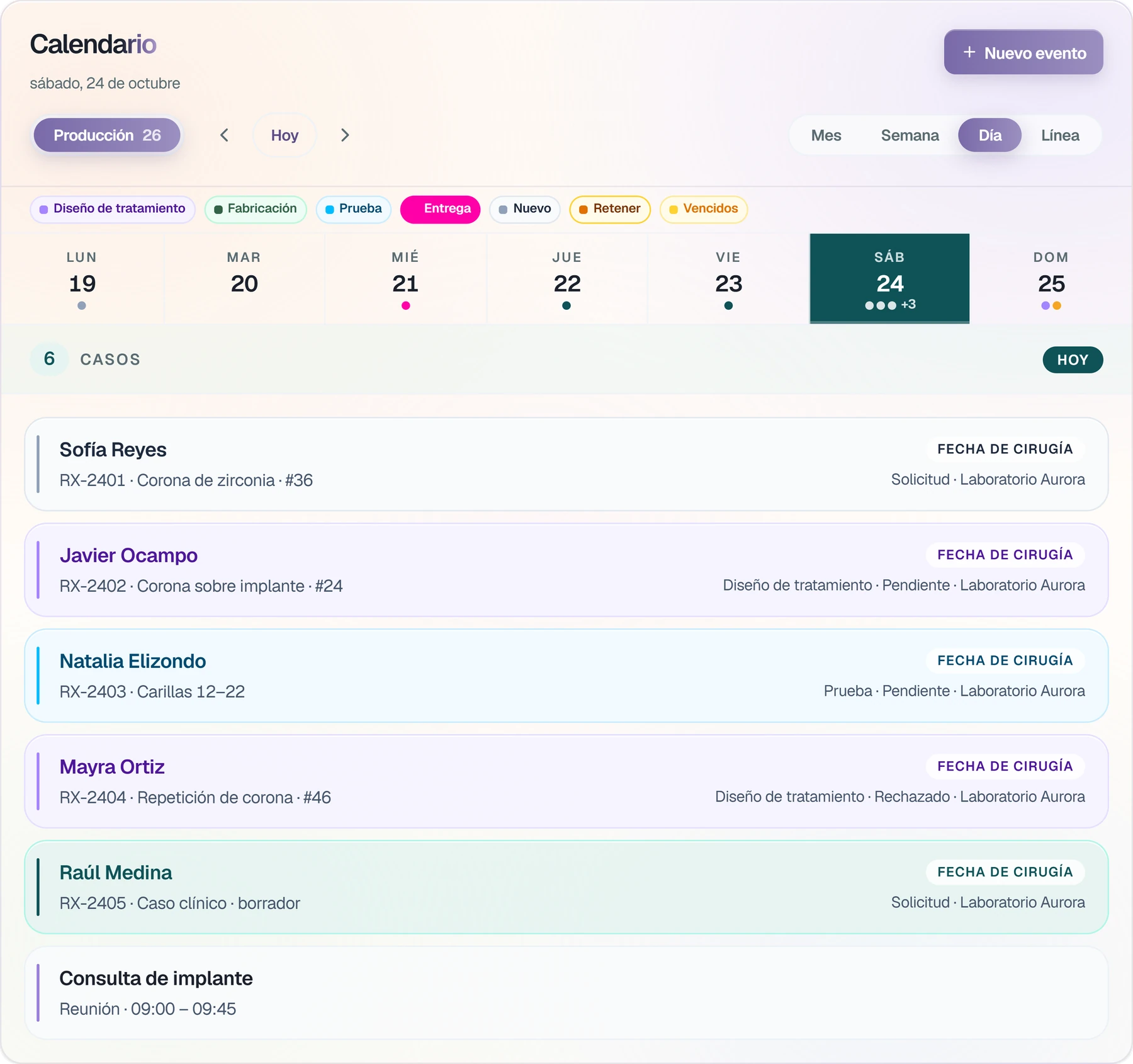
Production by stage.
Each case appears on its date, in the color of its stage.
- Filter.
Treatment design, Fabrication, Try-in, Delivery, New, Hold, and Overdue.
- Change the view.
Month, Week, Day, or Line.
- Open the record.
Patient, Rx, stage, and laboratory, without leaving the calendar.
Notices
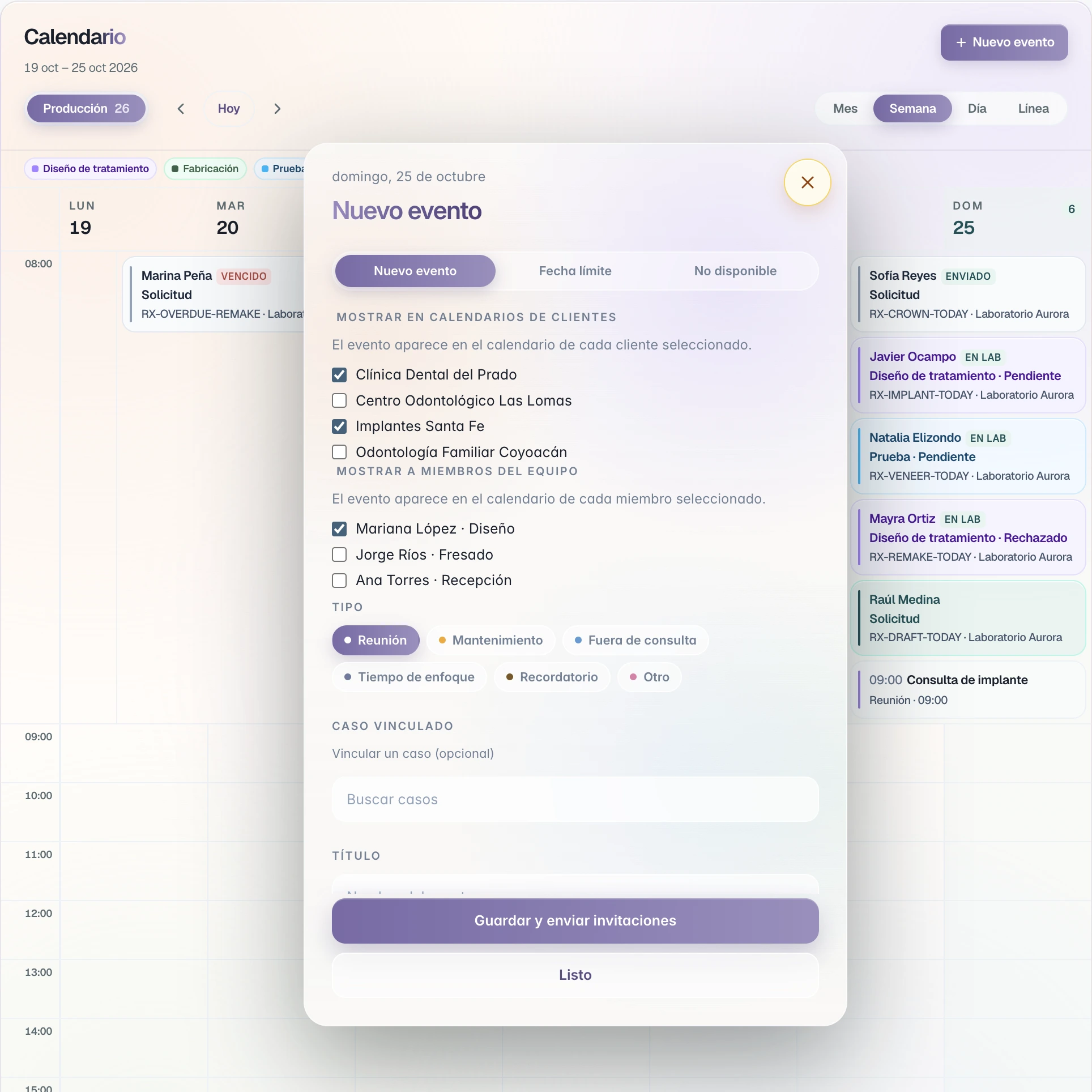
Tell your clinics.
An event can appear on the calendar of the clinics you choose and on your team's.
- Choose the clinics.
Show on client calendars.
- Choose your team.
Show to team members.
- Invite by email.
The invitation arrives with Accept or Decline.
One calendar
You mark it. They see it.
What you mark in the laboratory appears on the calendar of your clinics.
You mark them once. Your calendar and your clinics' calendars show them the same way.
Each clinic has its own. When it fills, that day closes only for that clinic.
The clinics and the people on your team that you choose can see them.
Two sides
Laboratory and clinic.
The same calendar, seen from each desk.
Laboratory
Marks and decides.Clinic
Sees it and chooses another day.Marks them, with dates and a note.
Sees them as CLOSED.
Is not set on a closed day.
Cannot put it on a closed day.
Sets how many cases per day, per clinic.
Places cases until its capacity is full.
Chooses which clinics and which teammates see them.
Sees the events the lab shows them.
Questions
Questions from the lab.
Yes. When they choose that day they see the notice Laboratory unavailable this day, with the dates and the note you wrote.
Clinic managementYes. In Unavailable you choose a start date and an end date. The whole range stays closed.
For labsThat day closes only for that clinic. The others keep their own capacity.
For labsNo. Only the events you mark in Show on client calendars, and only the clinics you choose.
Clinic managementThe proposal stays pending on the case record. You accept it, decline it, or counterpropose another date.
For labs