
Accept and fabricate cases
Manage your
dental lab.
Learn how to receive a complete case from a clinic and keep the work on schedule, from the first scan to payment and delivery.

The workflow
Organize your lab in six steps.
Your client list
Organize your clients.
Create or import a profile for each dentist you work with.
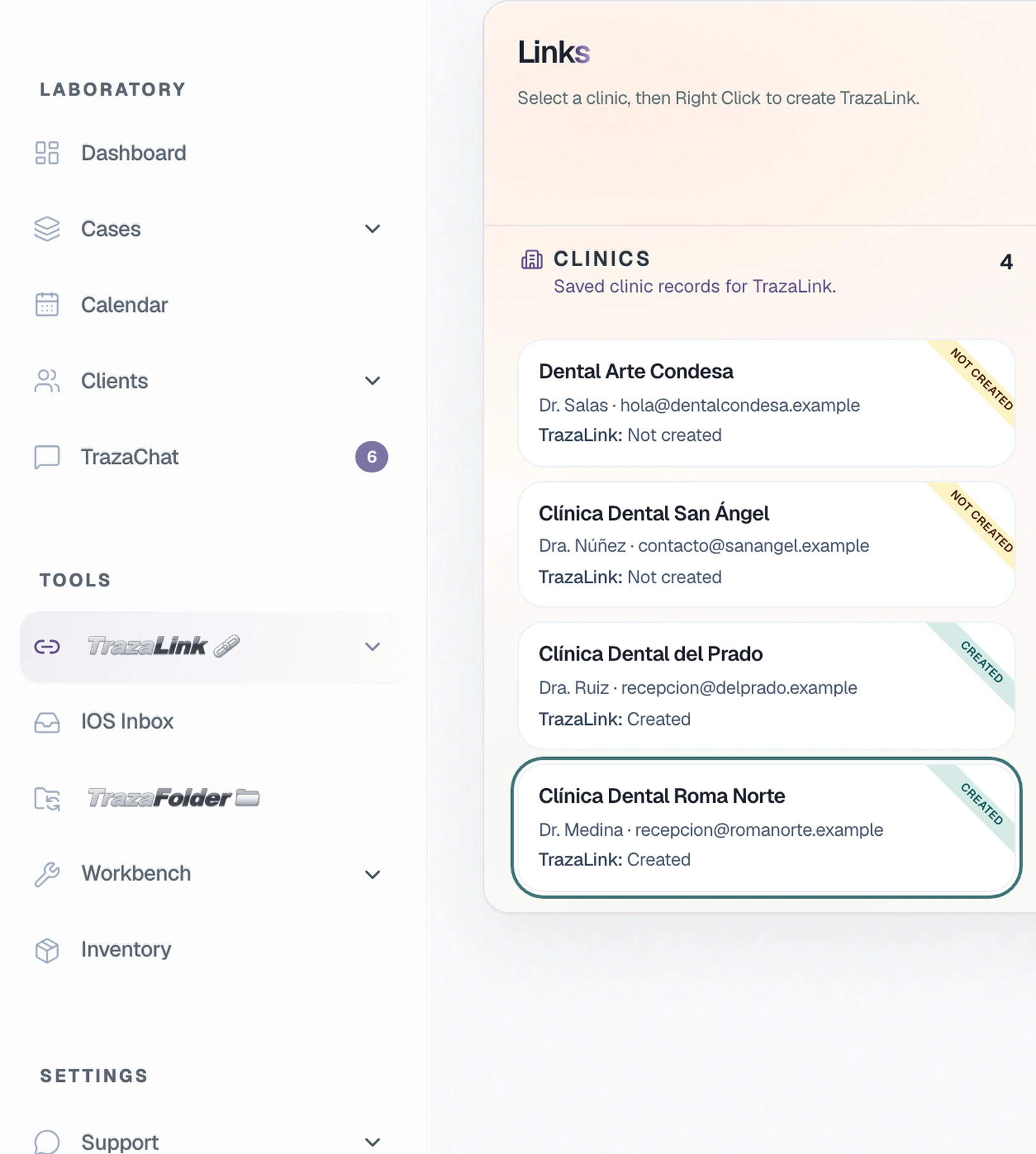
In TrazaLink, look for the practice in the Clinics column. To add a practice, open Clients and select “New clinic.”
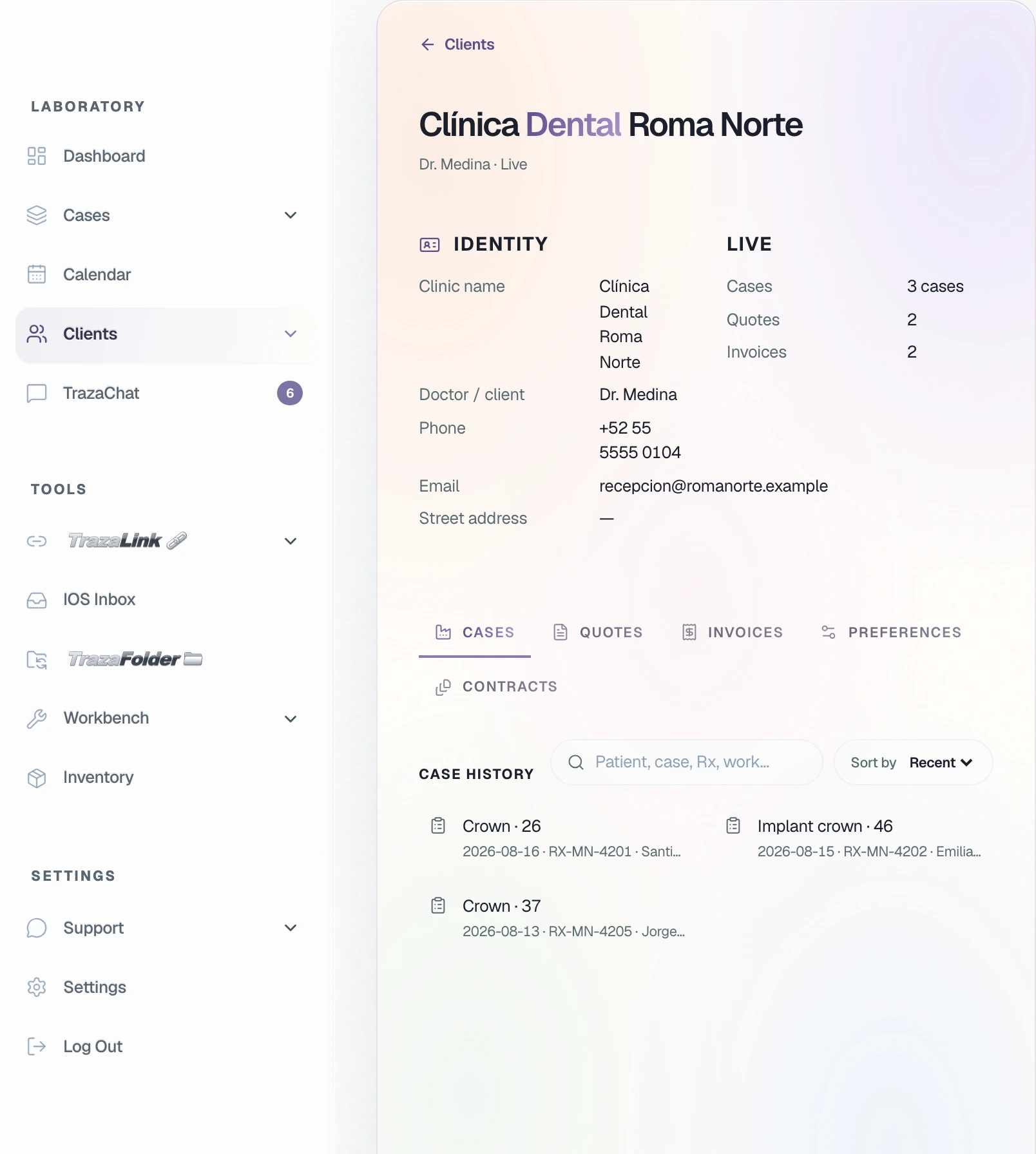
In Clients, search for “Roma Norte” and press Enter. Open the tabs to see the clinic’s cases, quotes and invoices.
Your clinicThe clinic can check which invoices it has paid.
Digital prescription
Set your case requirements.
Agree with the clinic on the scans and photos you need for each type of work.
Ask for scans of both arches, a bite record and a photo of the shade tab next to the tooth.
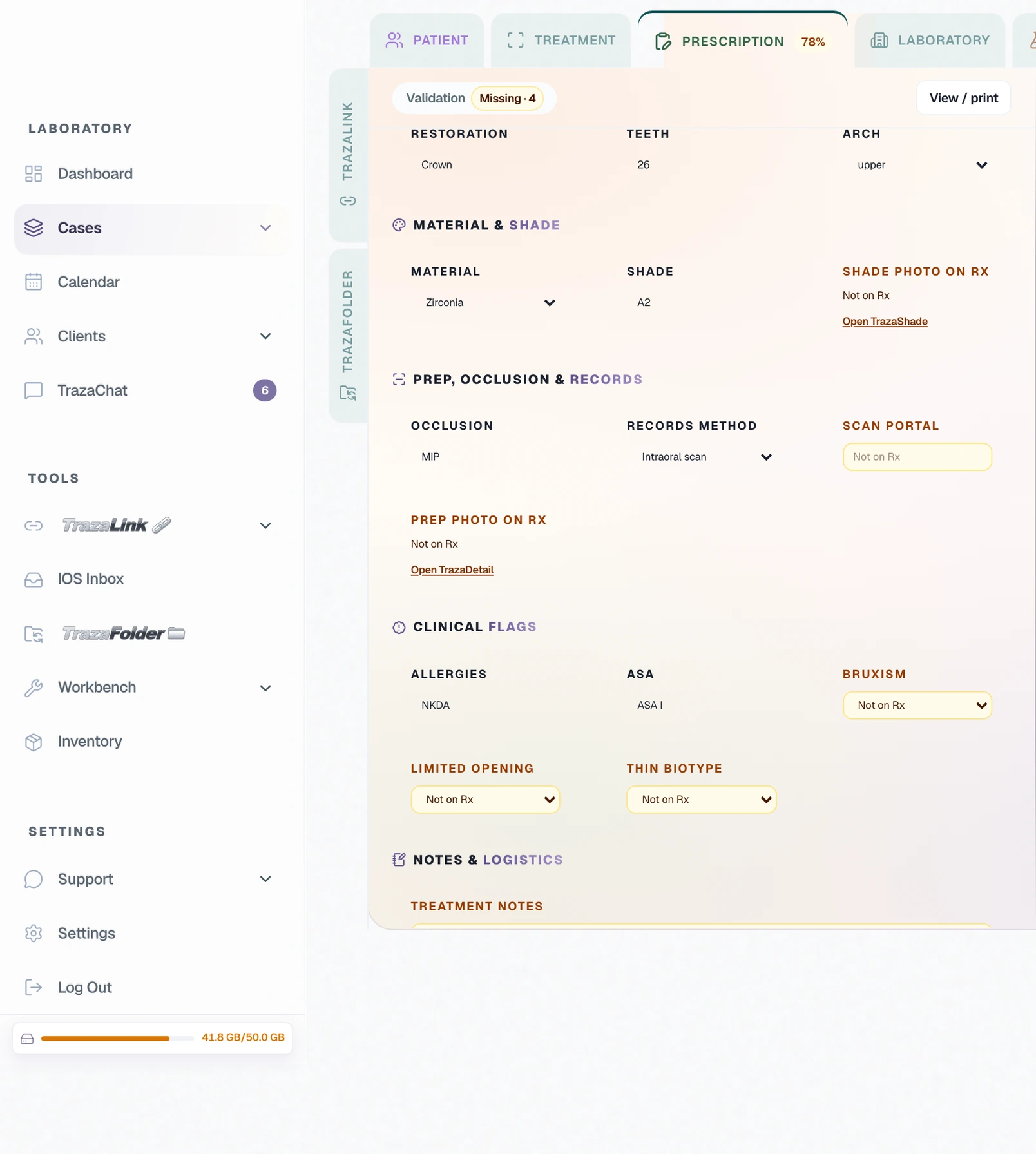
Ask for the tooth number, material and shade. Santiago’s prescription calls for a zirconia crown on tooth 26 (FDI), shade A2.
This case requires an intraoral scan. The clinic selects “IOS Upload” for the scan and “Upload photos” for the shade photo. If you need a 3D X-ray, use “Upload CBCT/DICOM.”
Case intake
Receive cases from your clients.
Dentists can send you a case through the account you created for them or through a TrazaLink.
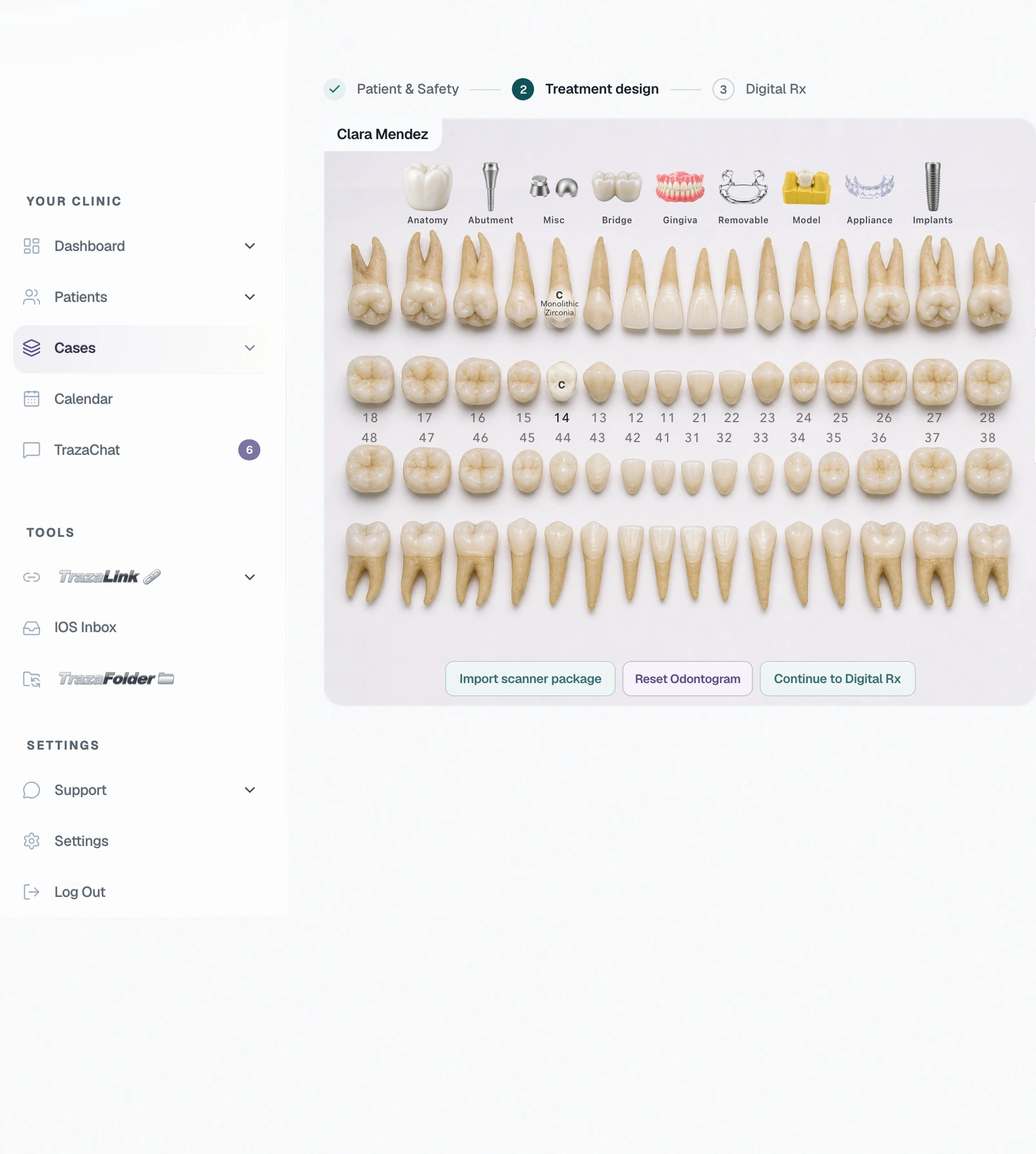
In Cases, the dentist selects “New case,” marks the tooth and chooses the treatment. They send you the prescription with the files.
Send a link for that case. The dentist opens it, fills out the prescription and attaches the photos and scan.
In New cases, select the card and open the case. Check the prescription and files. If anything is missing, ask the clinic in TrazaChat.
Calendar
Share your production dates.
Each clinic can sign in to see when your lab is closed and request a date for its case.
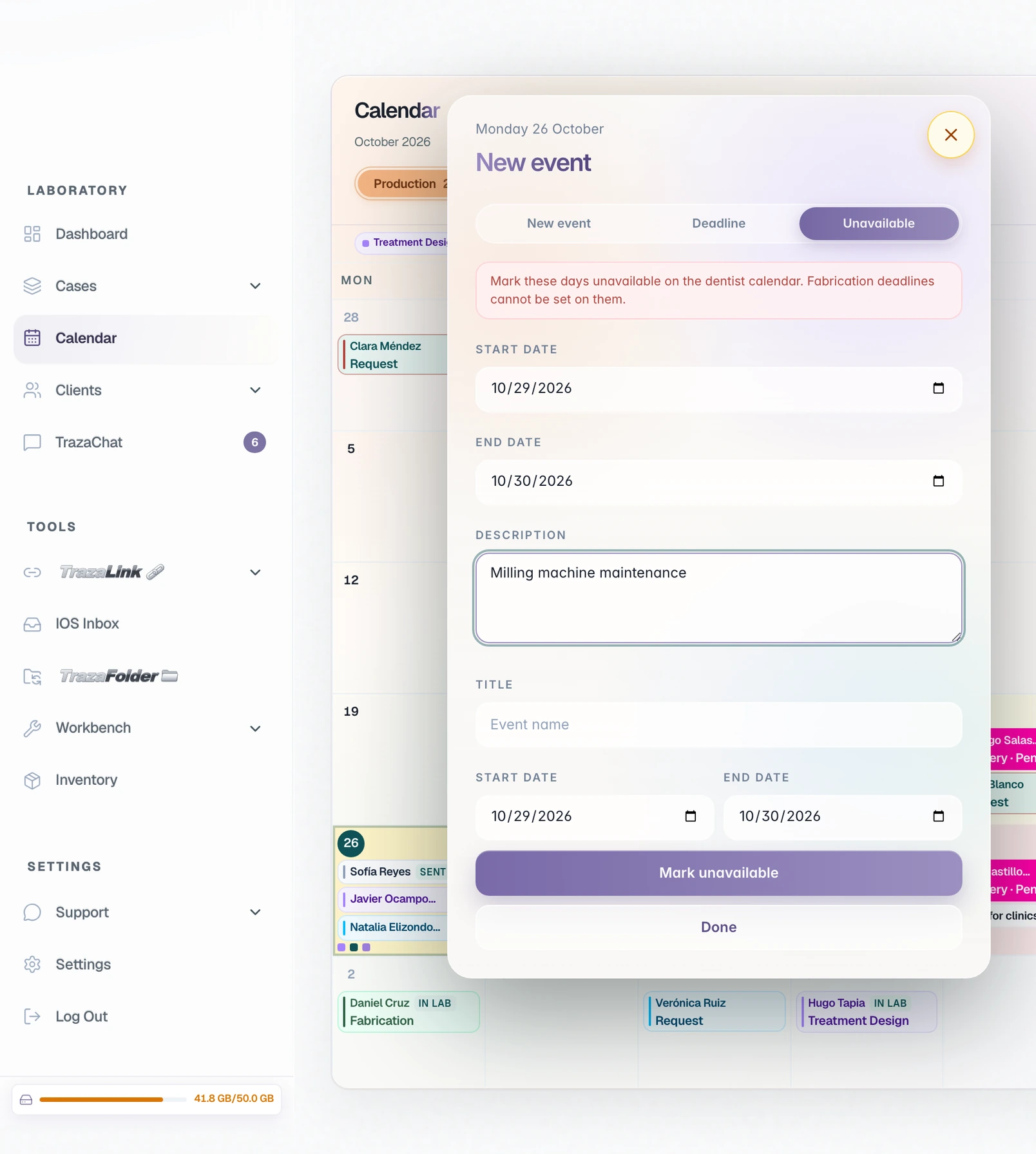
In Calendar, select “New event” and choose “Unavailable.” Enter the start and end dates, then save the closure.
Name the new event. Under “Show on client calendars,” select the clinic and save the event.
Sign in to your lab account in your phone’s browser. Open the menu, tap Calendar and choose Day to see your work and events.
In the clinic account, open Calendar and choose Production. October 27 and 28 are available. The 29th and 30th are closed. Select a date and tick the option to notify the lab for approval.
Billing
Prepare the quote and invoice.
Send the quote to the clinic. Agree whether you’ll invoice before or after fabrication.
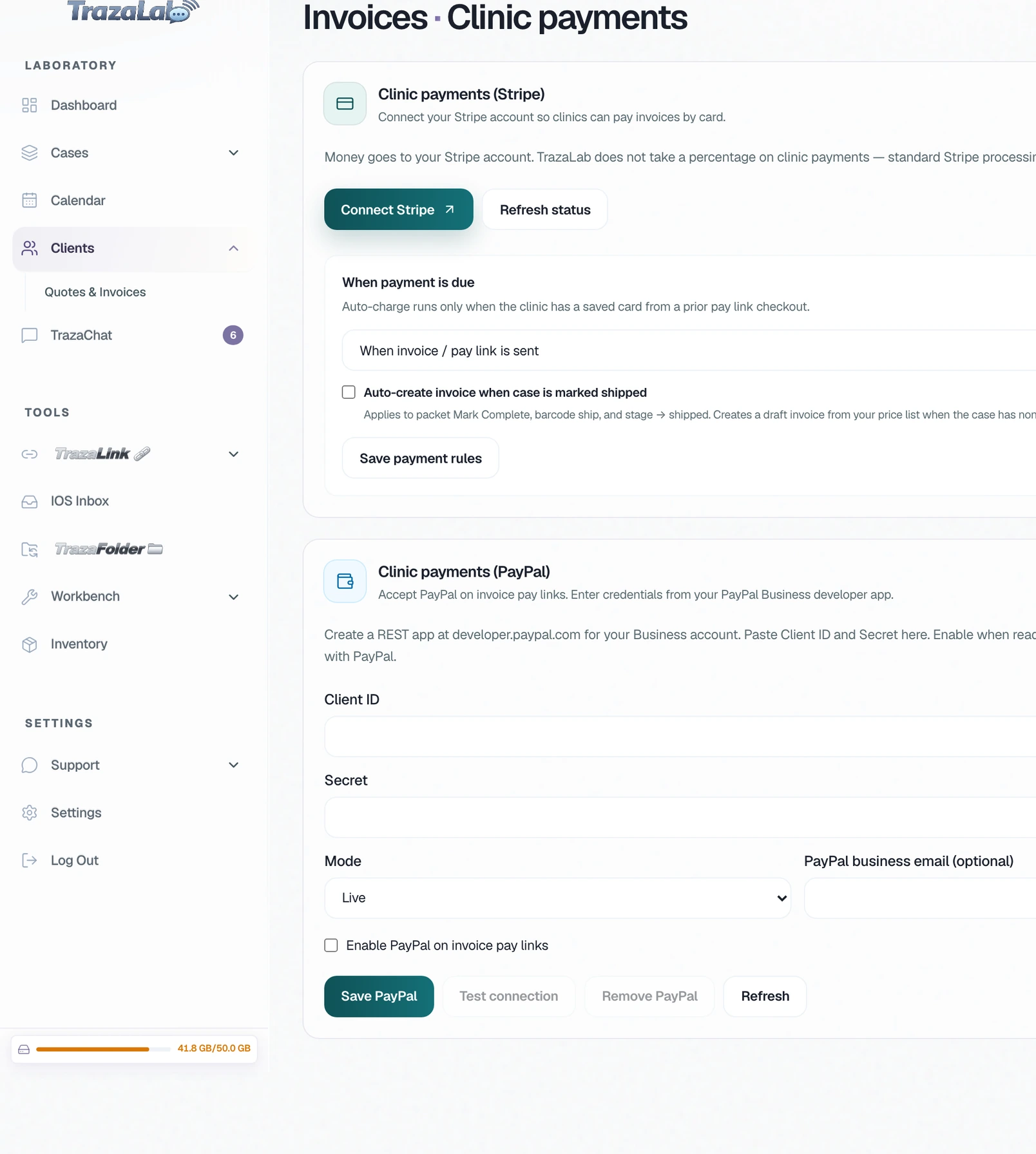
In Invoices, open clinic payments. Connect Stripe for card payments or link your PayPal Business account.
Open the case, select “New quote,” add the work and send the quote to the clinic.
Create the invoice from the accepted quote. In Roma Norte’s profile, you can see whether the clinic has paid.
Delivery
Arrange pickup or shipping.
Ask whether the clinic will collect the work, wants you to deliver it in person or needs it shipped.
Find the phone number in the clinic’s profile. Confirm who will receive the crown, where to meet and at what time.
In Fabrication, select “Shipped.” Choose the carrier, enter the tracking number and select “Mark shipped.”
At your desk
Where to find what you need.
Frequently asked questions
Your lab and the clinic agree on the scans and photos needed for each type of case. On the Enterprise plan, the TrazaLab team configures those requirements in your account.
What to request for a crownYes. Send a TrazaLink. The dentist opens it in a browser, completes the prescription and attaches the files.
How to receive the casePropose another date from the case so the clinic can confirm it.
How to agree on a dateYes. Create the invoice from the accepted quote and collect payment once you finish the case.
How to prepare an invoice