
Import your dental cases.
Dental labs and dentists: upload your list as CSV or Excel, review each dental case, and add its photos, IOS, or DICOM.
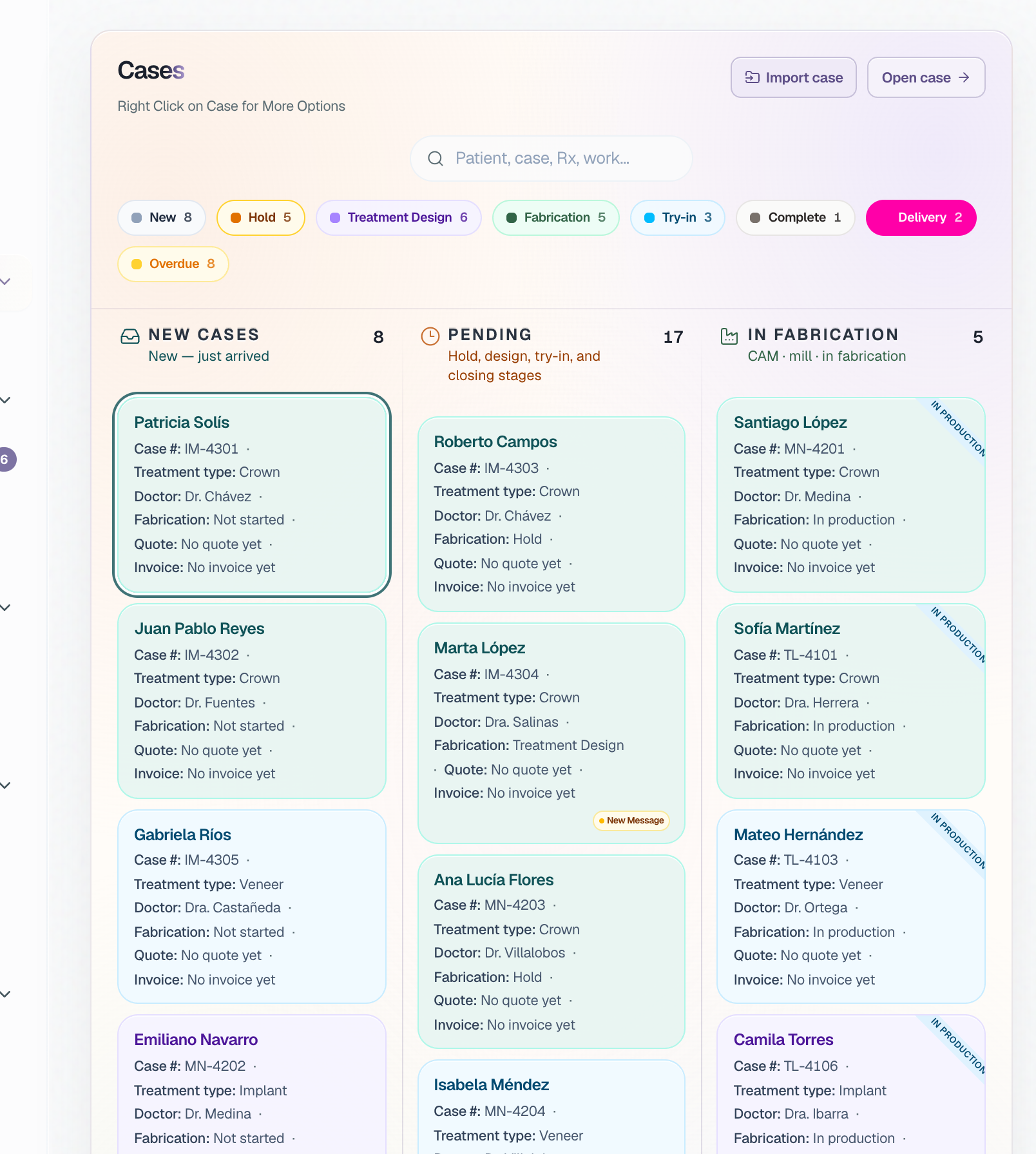
Your board
Start on Cases.
Open Cases in the sidebar. A lab uses Import case; a dentist uses Import on their Cases board.
- Open Cases.
From the sidebar of your desk.
- Click Import case.
At the top right of the panel; the import opens over your board.
Upload your list
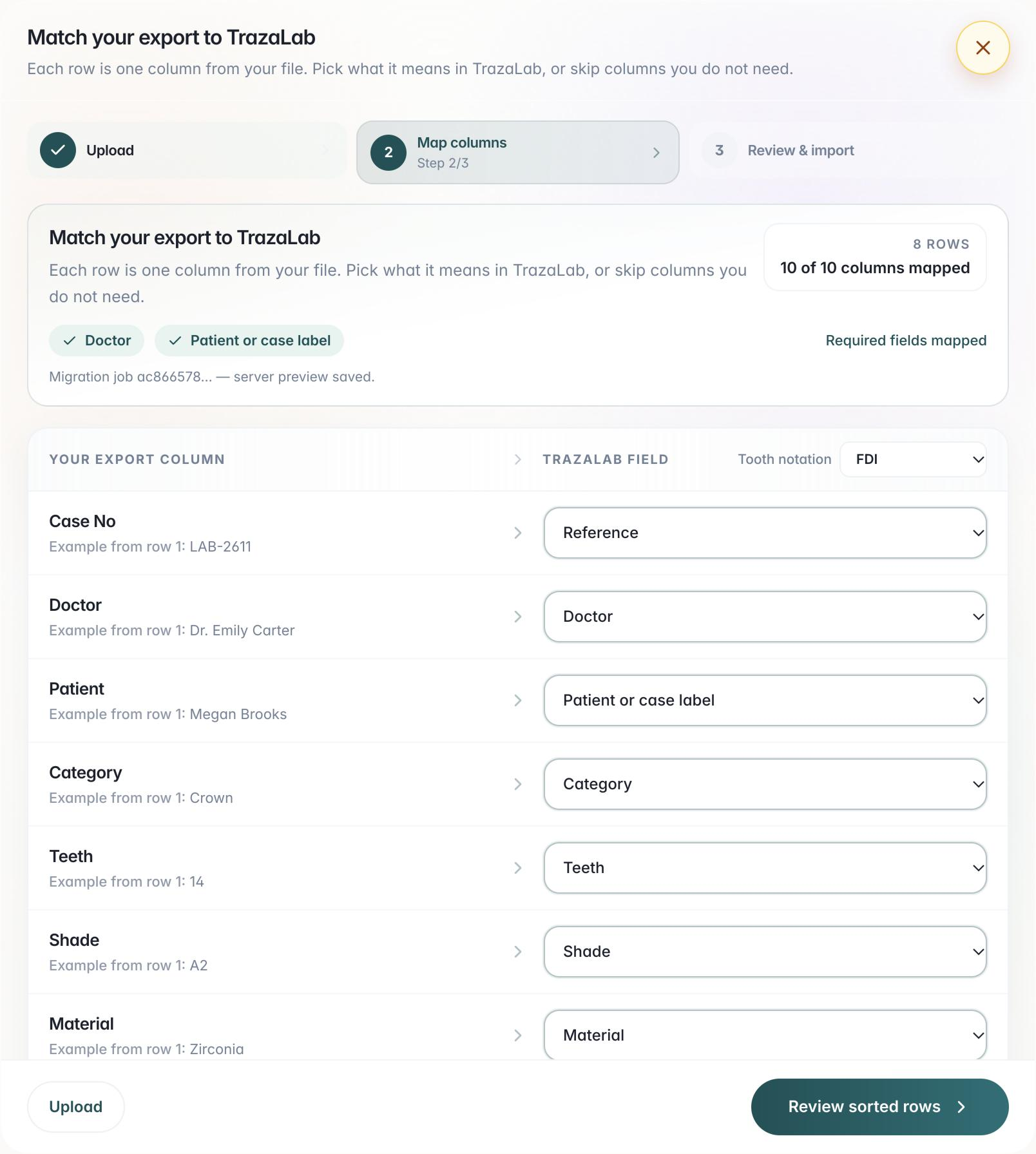
Match your columns.
Drop a .csv, .tsv, .txt, or .xlsx file with your dental cases. For each column, you pick its TrazaLab field.
- Pick the field for each column.
Doctor, patient, teeth, shade, material, due date…
- Skip what you don't need.
A column left on Skip is not imported or stored.
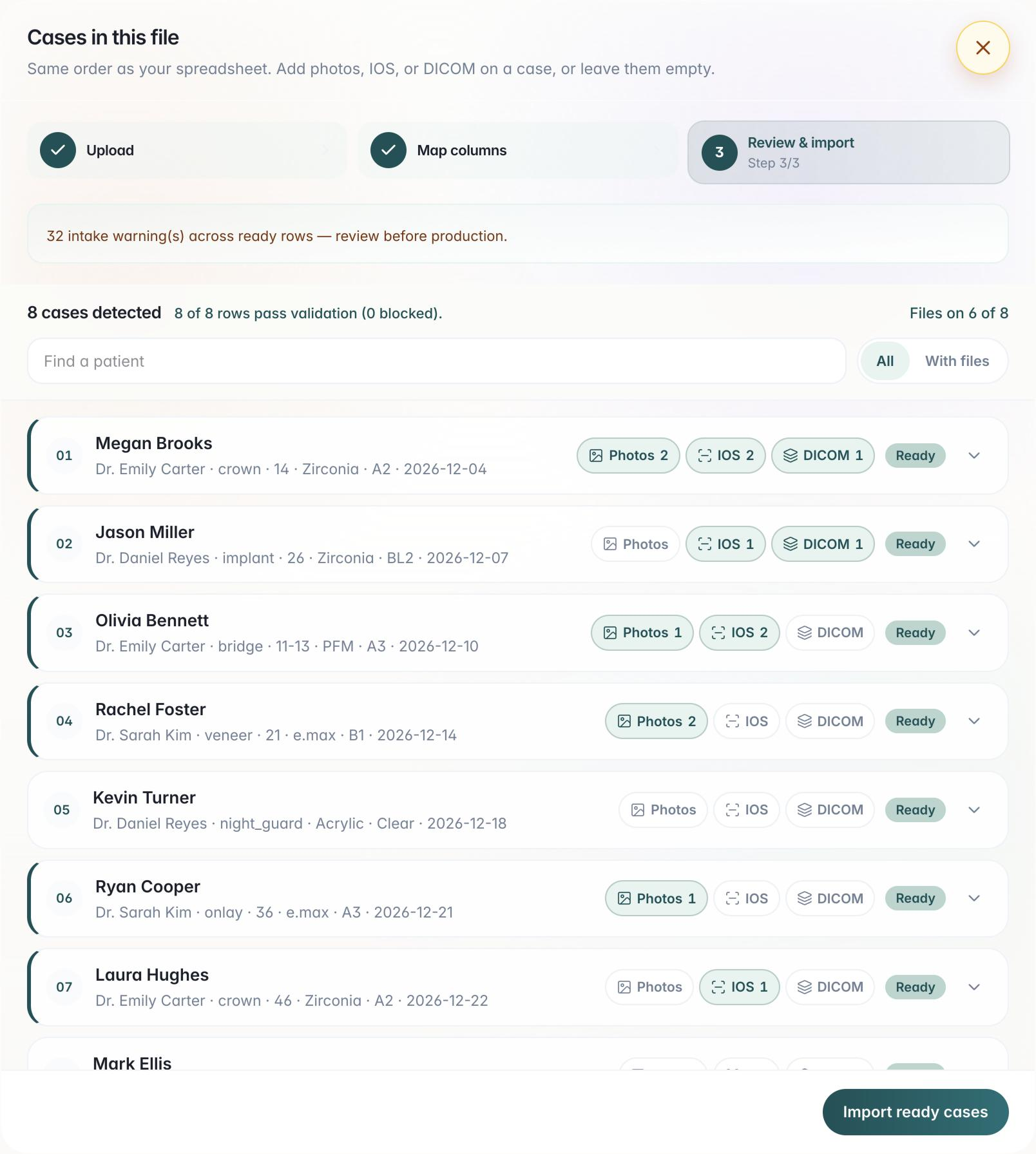
Review & import
Review each dental case.
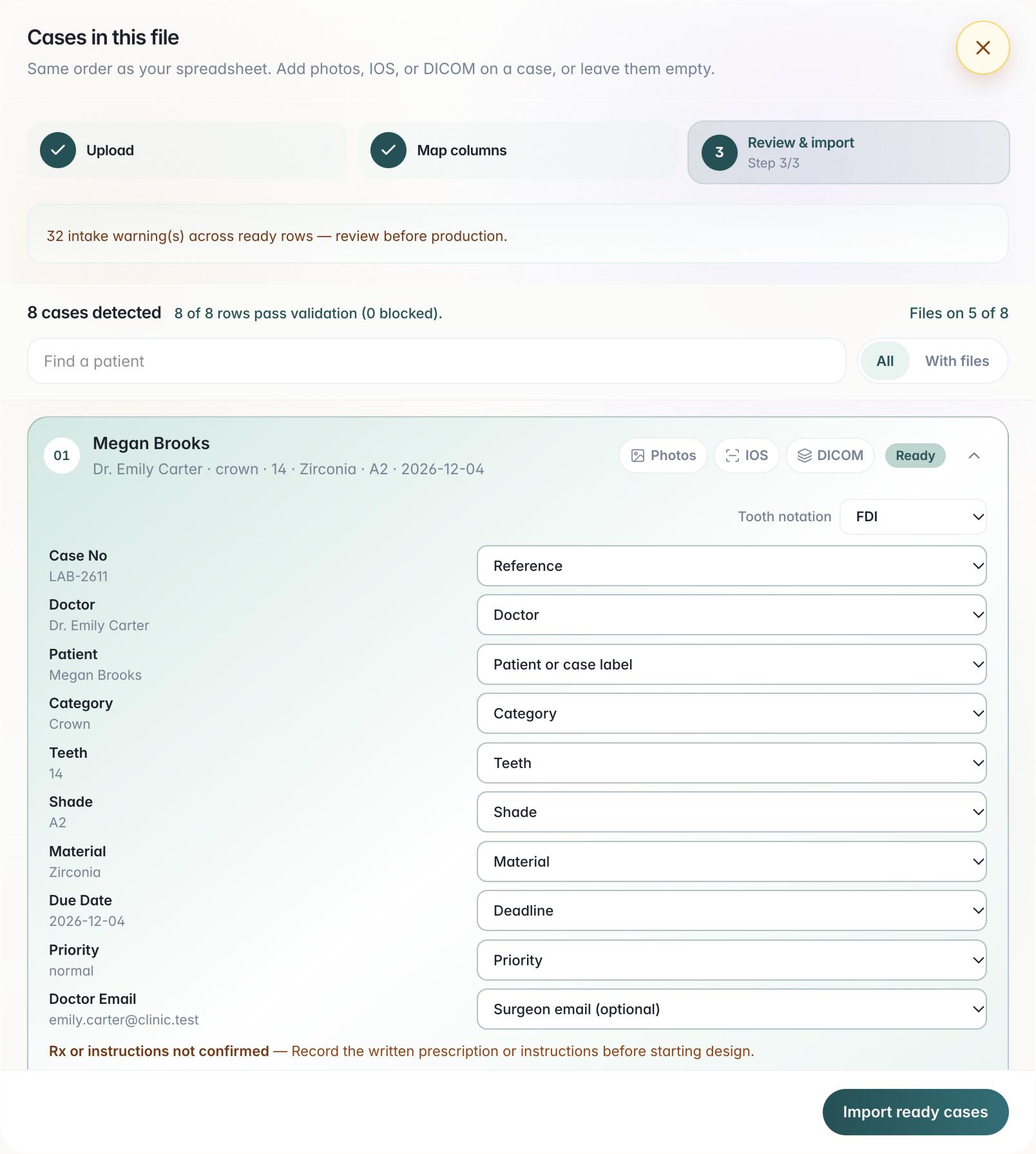
The cases in your file, in your spreadsheet's order. Open one to see its columns and its files.
Each column from your spreadsheet, with the field you gave it.
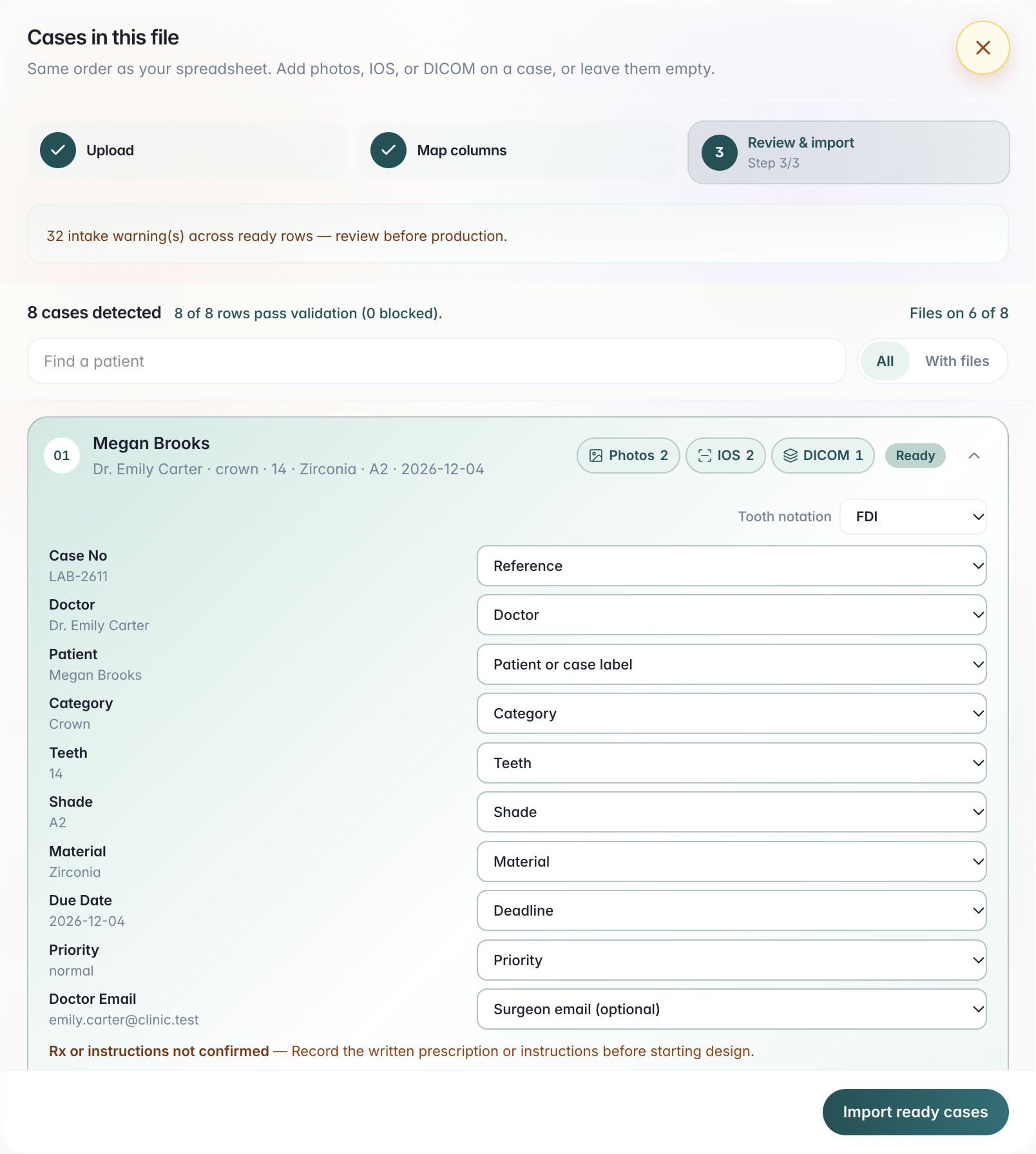
When you import
They land in New cases.
Each dental case shows up on your Cases board with the data from your spreadsheet.
- If you're a lab.
Your dental cases land in your New cases column.
- If you're a dentist.
They arrive as drafts in your New cases column. Your lab doesn't see your drafts.
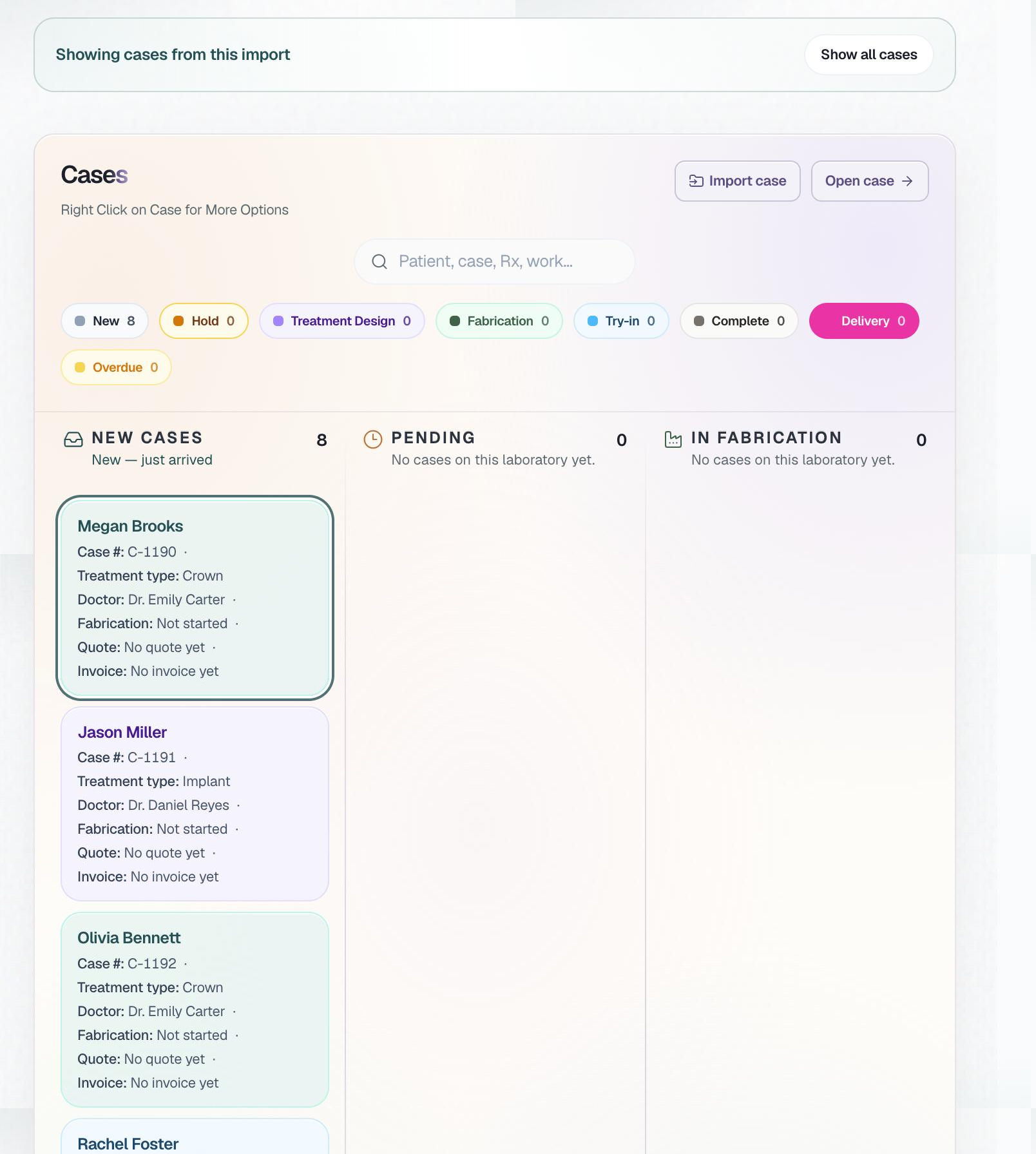
The dental case
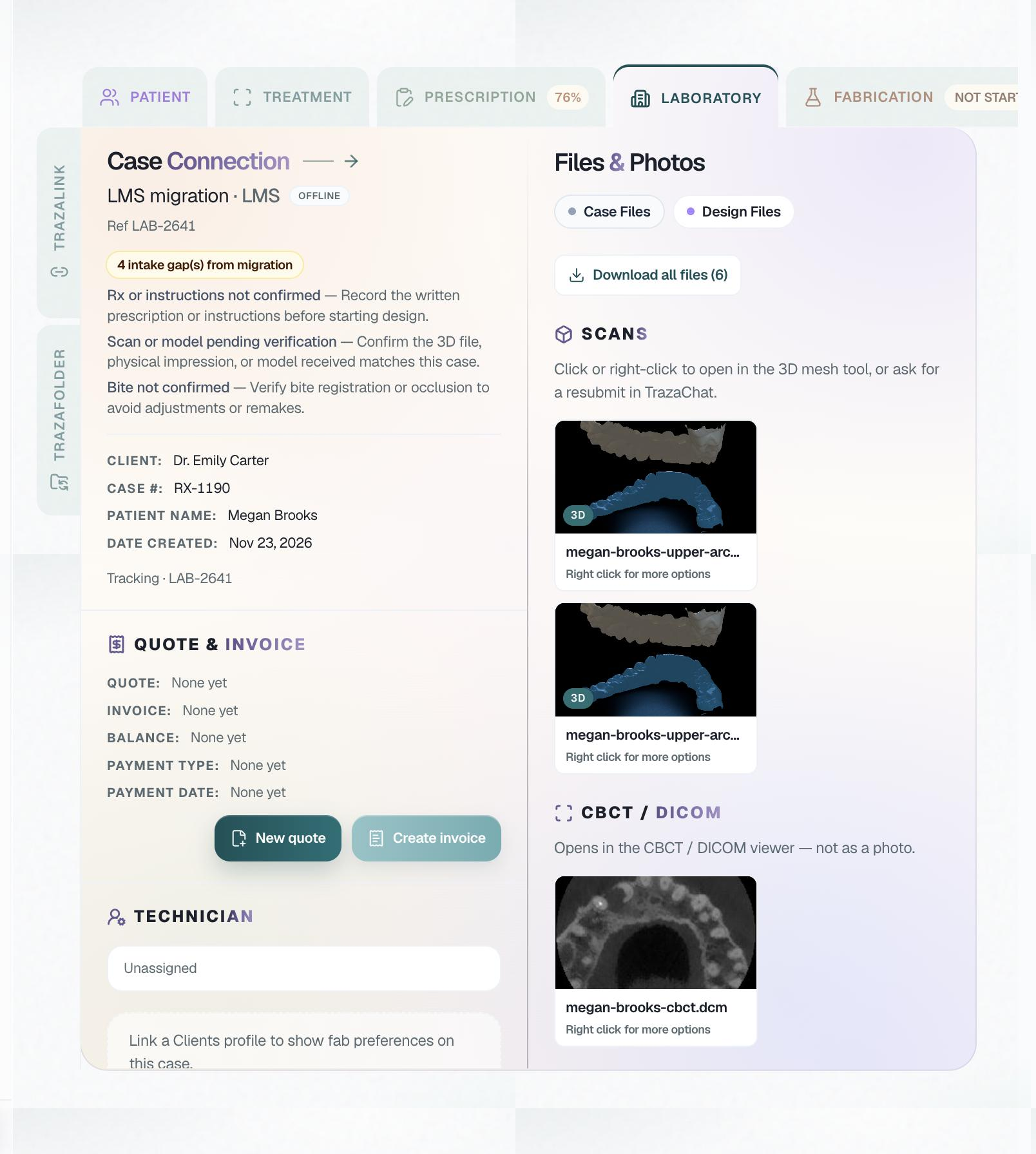
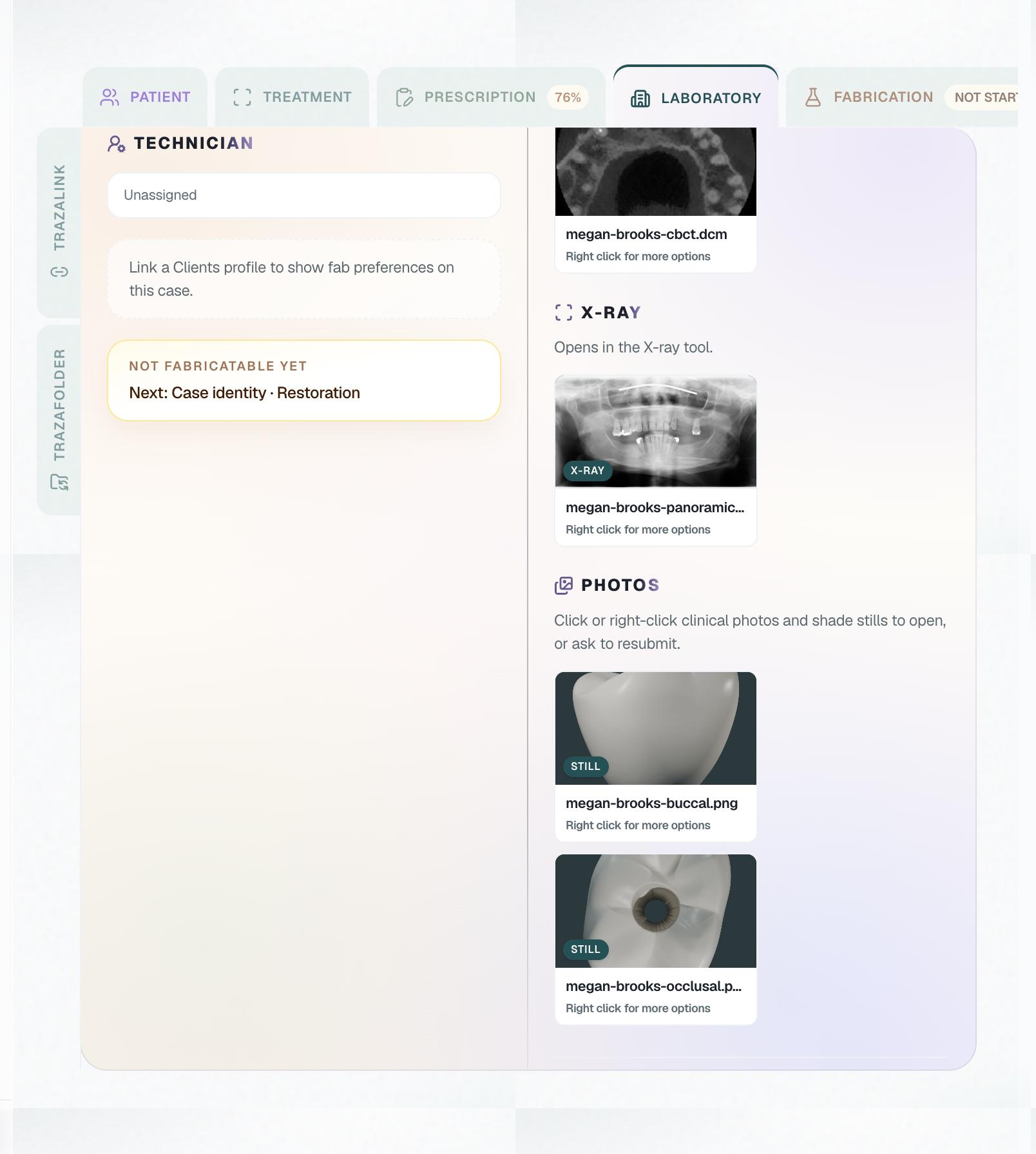
Every file in its place.
Open an imported dental case: the data from your spreadsheet and each file you added, in its own section.
The IOS goes under Scans and a .dcm under CBCT / DICOM.
Questions
Questions about importing.
A .csv, .tsv, .txt, or Excel .xlsx file with your dental cases. An .xls file or a .zip of rows is refused.
Your listOn Cases. A lab uses Import case and a dentist uses Import. Both get the same review.
Start on CasesA column left on Skip is not imported, and TrazaLab does not store it.
Each columnNo. Photos, IOS, and DICOM are optional on each dental case; you can leave them empty.
Review each casePhotos go under Photos, IOS under Scans, a .dcm under CBCT / DICOM, and an image added under DICOM under X-ray.
The dental caseA lab's in its New cases column. A dentist's as drafts in the dentist's New cases column.
New casesNo. A lab does not see a dentist's private drafts.
New casesNext step
Import your first list.
Sign in to TrazaLab, open Cases, and drop your file. No account yet? Create one.